Operations
What to put on your waiting-room TV
Your waiting-room TV should show who is called now, who is next and the current wait, in letters big enough to read across the room. People look up for one reason: to see whether it is their turn yet.
As an Amazon Associate, NextUp Walk-in earns from qualifying purchases.
The short answer
Your waiting-room TV should show who is being called now, who is next, and the current wait, in letters big enough to read from across the room.
Add a QR code so new arrivals can join, and local weather if you want something calm to fill the screen. Leave off anything that competes with the names.
People in a waiting room look up for one reason: to see whether it is their turn yet. Everything on the screen should answer that question faster.
The NextUp app’s TV display
The line, on the wall
The NextUp app
- Now calling and up next, by first name and last initial.
- A QR code so passers-by can join.
- Spoken call-ups in English or Spanish, if you want them.
- Every screen included: the lobby TV, the door tablet and the phone check-in page are on every plan, Free included.
Free needs no card: pick it at sign-up. The 14-day trial has every Pro feature, once per business. A card is needed to start, but nothing is charged until the trial ends, when the plan is charged unless you cancel first.
Why the line belongs on the TV
The hardest part of waiting is not knowing. Someone who can see three names ahead of them settles in instead of asking the counter.
A visible line also makes the order feel fair. When a name is called, everyone can see why it was that person and not them.
And it helps people stay. Why people leave before they are served goes into it, and the walk-out calculator runs your own numbers.
What the NextUp app display shows
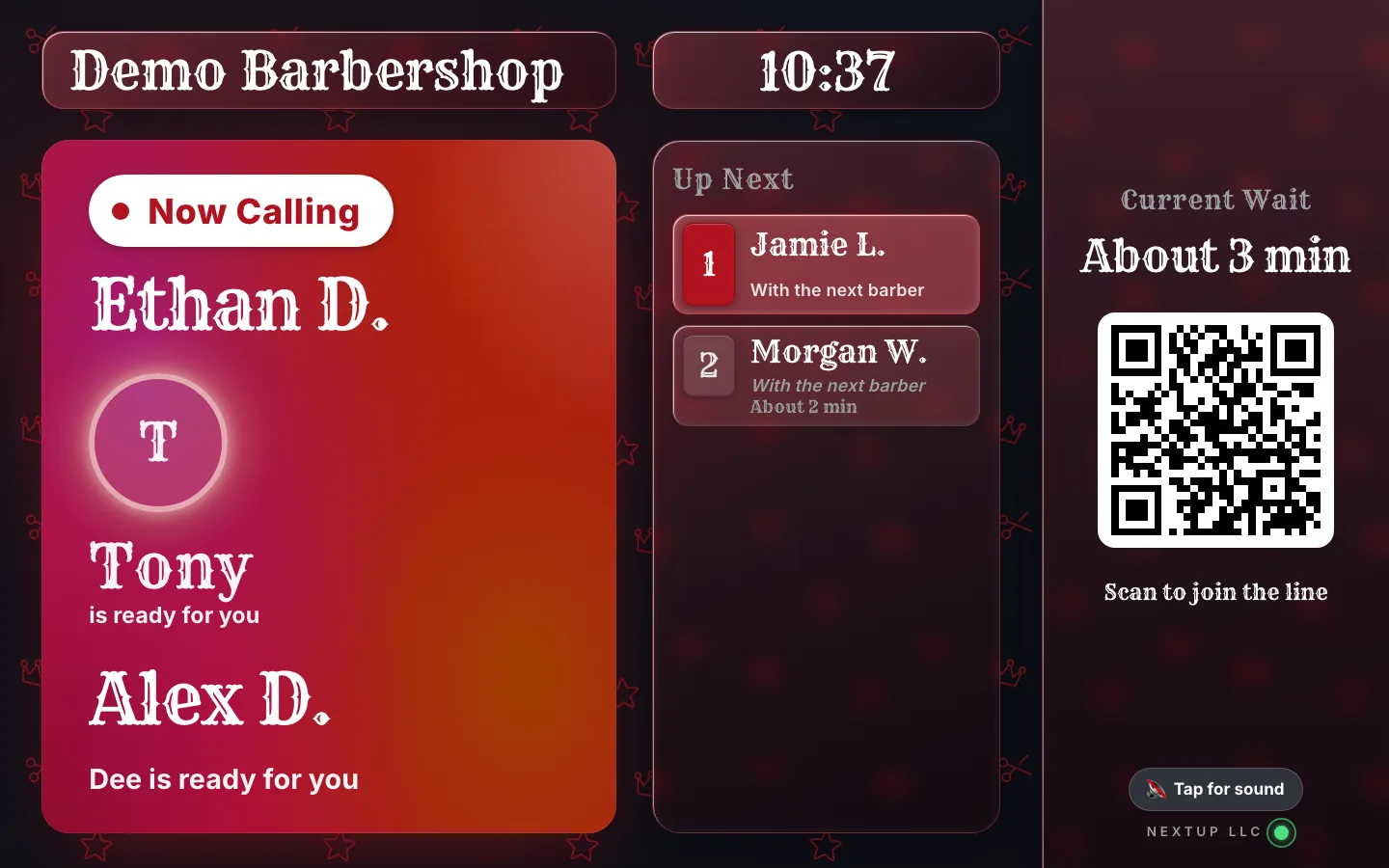
Now calling, in large type, with the photo of the team member who is ready: "Jordan, you’re up. Chris is ready for you." While someone is being called, the screen fills with a slow gradient in your brand color, so the room notices without a buzzer.
Up next, by first name and last initial only, each with its own estimate and the current wait. It updates as soon as staff call someone from the Staff Screen.
A QR code, so anyone walking by can join without a trip to the counter.
Spoken names, if you want them. When someone is called, a short chime plays, then their name and the team member are read aloud through the TV’s own speakers.
Call-up spotlight, if you turn it on: a full-screen “You’re up!” with the customer’s first name, their team member’s photo if that person has turned it on, and a chime.
For guests who need it, call-ups can also be spoken in English or Spanish, and a big-type, high-contrast view is available. How each of these works, and what rotates between calls, is in the next sections.
Weather for US locations, if you turn it on: the temperature now, the next few hours, and tomorrow, in °F or °C, from the National Weather Service. It steps back while someone is being called. If the forecast is unavailable, the TV shows no weather.
Your logo, colors, theme, and heading font, the same as the Check-in Page and the Door Tablet.
Estimate the wait for the next person who walks in
Slide the numbers to match a busy hour. The estimate is the same arithmetic a line uses to quote a wait.
- Wait for the next person
- 60 min
- Waiting right now
- 6
- Chairs working
- 3
- 30 min each
Hover or tab to a column for the numbers.
| Wait | |
|---|---|
| #1 | 0 min |
| #2 | 0 min |
| #3 | 0 min |
| #4 | 30 min |
| #5 | 30 min |
| #6 | 30 min |
| #7 | 60 min |
Example arithmetic: the wait for place N is the full rounds of service ahead of you. Real services vary, which is why a live line re-quotes.
Assumes every service takes the same time. A live line quotes from the real services booked, so it moves as the day does.
Call-up spotlight and accessible call-ups
When someone is called with the spotlight on, the screen shows a full-screen moment: their first name, “You’re up!”, and the photo (or initials) of the team member who is ready, with “Jordan is ready for you”. A chime plays and it stays up for about four and a half seconds. With reduced motion turned on, it stays still.
It helps most where the room is loud or full: a barbershop with six chairs, a groomer where owners are holding leashes, a clinic lobby. A first-timer sees a face and walks straight to the right person.
Spoken call-ups read the name and team member aloud in English or Spanish, and calls are queued so they never talk over each other. A large-text, high-contrast view shows the line in four big rows, name and wait, for people who read from the back of the room. Join and status pages got screen-reader fixes too: live wait updates, an alert when it is your turn, and form errors tied to their fields.
Rotating content between calls
Turn on rotating content and a card cycles every 5 to 60 seconds (you choose) between calls.
It can show the current wait, any live flash sale, a “Best time to visit” slide with the day’s forecast in a bar chart, and up to three recent 4 and 5 star reviews, with first name and last initial, when your location shows public reviews.
A tire shop can promote a tune-up sale while people wait; a nail salon can show reviews; a vet lobby can show the wait. Each slide only appears when there is something real to show. The forecast slide needs enough history.
How long is one loop of rotating cards?
Rotating content cycles every 5 to 60 seconds between calls. Pick how many cards you have and how long each stays.
- One full loop
- 60 s
- Loops in 10 minutes
- 10.0
- Spotlight time an hour
- 54 s
- about 4.5 s a call
Hover or tab to a column for the numbers.
| Loop length | |
|---|---|
| 1 | 15 s |
| 2 | 30 s |
| 3 | 45 s |
| 4 | 60 s |
| 5 | 75 s |
| 6 | 90 s |
Example arithmetic at the seconds per card you entered. A call interrupts the loop, and a slide only appears when there is something real to show.
The spotlight stays up for about four and a half seconds a call, so a busy hour spends under two minutes on it.
On Apple TV and Roku
The Apple TV and Roku apps get the call-up spotlight, the chime switch and rotating content (the current wait, flash sales and reviews).
The forecast slide, spoken names in two languages and large-text view are on the web TV; the Apple TV app speaks names, and Roku speaks them through the TV’s Audio Guide when it is on.
Which display has which feature
| Call-up spotlight and chime switch | Yes | Yes |
|---|---|---|
| Rotating content: current wait, flash sales, reviews | Yes | Yes |
| Best time to visit forecast slide | Yes | No |
| Spoken names in English or Spanish | Yes | Apple TV speaks names; Roku speaks them through its Audio Guide when it is on |
| Large-text, high-contrast view | Yes | No |
The web TV is the display that opens in a browser.
Which one to switch on first
The spotlight, spoken call-ups and rotating content are all off until you switch them on under Brand & Theme, then TV Display, so you can add them one at a time. The TV updates within seconds, no restart needed. Match the first one to the problem you actually have.
A loud or full room: start with the call-up spotlight. A full-screen name and a face, with a chime, is hard to miss and tells a first-timer which person to walk to.
Guests who cannot read the screen from where they sit: start with spoken call-ups or large text. Both are on the web TV. Test the volume from the farthest seat so the name carries without drowning out conversation.
Long waits and idle screens: start with rotating content. Keep the interval long enough to read a card.
Change one setting, then leave it for a few days before adding the next.
What to leave off
Cable news and sports. They pull eyes away from the names, and they start arguments. Someone watching the last two minutes of a game misses their call.
Long promotions and slideshows. A rotating ad that covers the line for 20 seconds at a time defeats the point. If you want to promote something, put a sign beside the TV, or run a flash sale on the booking page.
Full names and phone numbers. A public screen should show as little as it can. The NextUp app shows first name and last initial. Phone numbers stay off the TV.
A frozen screen. A display that has stopped updating is worse than no display, because people trust it. Pick hardware that stays connected. More on that below.
What goes on the screen, and what stays off
| Now calling | Yes | The reason people look up |
|---|---|---|
| Up next | Yes | First name and last initial only, with each estimate |
| Current wait | Yes | An honest wait keeps people in the room |
| QR code | Yes | Passers-by can join without a trip to the counter |
| Spoken names | Optional | A chime, then the name read aloud through the TV’s speakers |
| Call-up spotlight | Optional | A full-screen “You’re up!” with the first name |
| Weather (US locations) | Optional | Something calm to fill the screen; it steps back during a call |
| Cable news and sports | No | Pulls eyes from the names and starts arguments |
| Long promotions and slideshows | No | A rotating ad that covers the line defeats the point |
| Full names and phone numbers | No | A public screen should show as little as it can |
| A frozen screen | No | A display that stopped updating is worse than none |
Everything marked optional is a setting you turn on yourself.
Where to put the TV
Put it where the waiting seats face, high enough to see over people standing at the counter. If the waiting area wraps around a corner, a smaller screen people face does more than a big one they have to twist to see.
Make sure people in the doorway can see it too. A walk-in deciding whether to stay will look at the screen, and a short line with an honest wait keeps them. In an auto service lounge, put it where people sit with a laptop, not by the bay door.
Any ordinary 4K TV works. If you use spoken names, set the volume so it carries across the room without drowning out conversation.
Make it look like your shop
The screen is on the wall all day, so it should look like it belongs there. Add your logo and your colors, then pick one of the themes and a heading font: modern, serif, script, vintage, blackletter or playful.
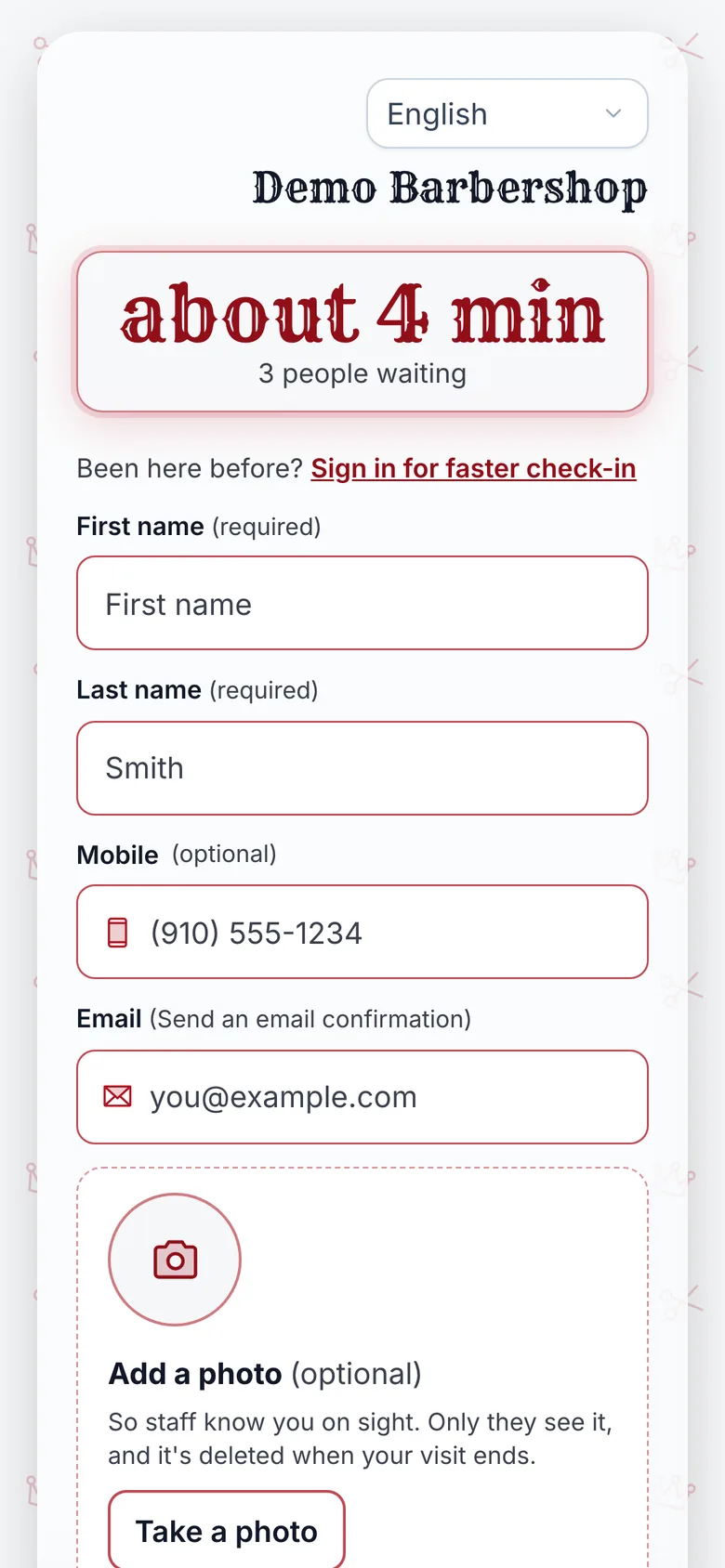
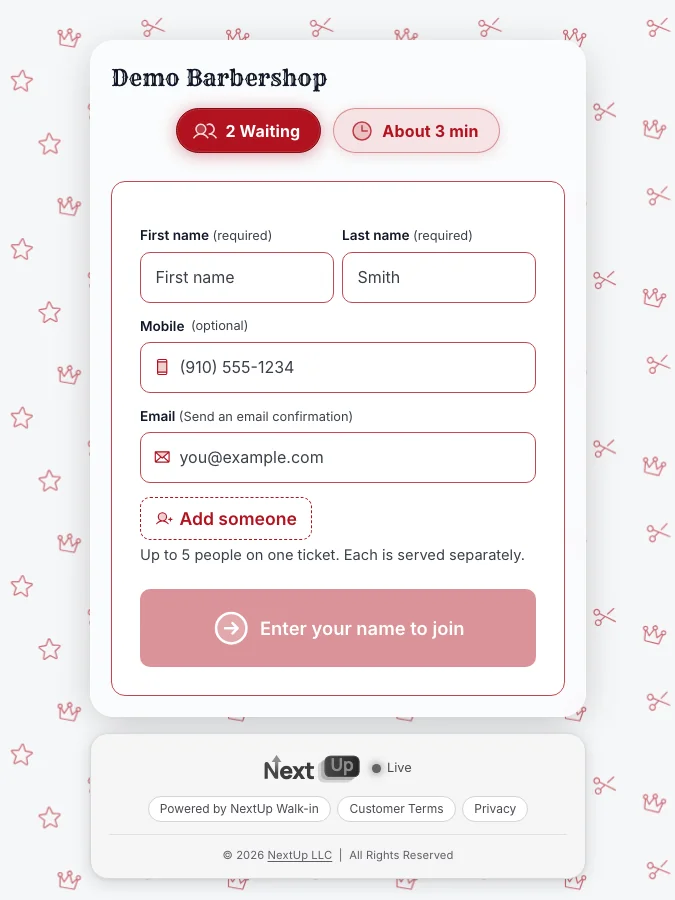
The same look carries to the Check-in Page on the customer’s phone and to the Door Tablet, so the whole visit feels like one place.
Add a photo for each team member. When someone is called, the TV shows the face of the person who is ready for them, which helps in a shop with six chairs and a new customer who does not know anyone yet. A first-timer can walk straight to the right chair.
Keep the rest simple. A busy theme with a loud background makes the names harder to read from the back of the room. If in doubt, stand at the furthest seat and check that you can read the next three names without squinting.
Keep it running all day
A wired connection is the most reliable. If the device has an Ethernet port and there is a cable near the TV, use it. A busy shop’s Wi-Fi is often crowded, with every customer’s phone on it.
Turn off the TV’s own power saving and sleep timer, so it does not switch itself off in the middle of the afternoon. If the streaming device came with a wall plug, use it rather than the TV’s USB port.
Glance at the screen when you call someone. If the name changes on the Staff Screen and on the TV at the same moment, everything is working. If it does not, restart the device before the room notices.
The hardware that works
The TV needs a small device in its HDMI port. The best is an Apple TV 4K with the NextUp app. It runs natively, not in a browser, so motion is the smoothest. Choose the model with Ethernet for a wired connection.
A Google TV Streamer works in its browser and has an Ethernet port. On a Fire TV Stick 4K Max, install the NextUp app from the Amazon Appstore, or open the display in Amazon Silk. A Roku TV or Roku stick runs the NextUp app for Roku (add it at my.roku.com/add with the code NEXTUPTV).
- WorksStreaming devices
- Apple TV
- Roku
- Fire TV Stick 4K Max
- Our app, from each device's own store
- Runs all day on its own, no phone needed
- Won't workChromecast
- Only mirrors a phone's screen
- The picture lags and stutters
- Freezes when the phone sleeps or leaves
- Use a Fire TV Stick 4K Max instead
- Coming soonNewer Fire TV Sticks
- 4K Select (2025) and Stick HD (2026) run Vega OS, with no web browser
- Our app for them is coming soon
- Until then, pick a Fire TV Stick 4K Max
- Coming soonLG and Samsung TVs
- A NextUp app built into the TV is coming soon
- Until then, plug in a streaming stick
As an Amazon Associate, NextUp Walk-in earns from qualifying purchases.
Skip the TV’s own browser too. On smart TVs and commercial displays it is usually years behind, so the screen can render badly or stutter. The best TV device for a waiting-room display compares them, and the equipment page lists what we recommend.
Connect it in four steps
- Plug in the device. Connect it to your Wi-Fi, or to Ethernet if it has a port.
- Open the NextUp app or /tv. The screen shows a six-character code.
- Enter the code. In the dashboard, go to Locations, then Connect a TV.
- Done. The TV remembers its location, and nobody signs in on it.
The TV display is on every plan, Free included; paid plans start at $29 a month. See the TV display, flash sales, barbershops, auto service, pricing. There is also a Free plan: 1 location, 1 team member and 50 check-ins a month, and no card needed.
See it on your own line
Free needs no card: pick it at sign-up. The 14-day trial has every Pro feature, once per business. A card is needed to start, but nothing is charged until the trial ends, when the plan is charged unless you cancel first.
Test it from the worst seat in the room
The best check costs five minutes and no money. Sit in the seat farthest from the screen, ideally at a busy hour, and answer four questions.
- Can you read the next three names without squinting?
- Can you tell who is being called in the first second, without hunting?
- Can you hear the chime and the name over the room, without it being loud at the counter?
- Does the TV change at the same moment as the Staff Screen when someone is called?
If any answer is no, fix that one thing: move the screen, simplify the theme, change the volume or restart the device. Then repeat the test the next time the shop is full.
Put your line on the TV
Your lobby TV can call the next client today.
Plug in a device, enter the code and you are live. It’s on every plan, Free included.
Free needs no card: pick it at sign-up. The 14-day trial has every Pro feature, once per business. A card is needed to start, but nothing is charged until the trial ends, when the plan is charged unless you cancel first.
Questions
What should a waiting-room TV show?
Who is being called, who is next, and the current wait, large enough to read across the room. A QR code to join and local weather are useful extras.
Does the TV show customers’ full names?
No. The NextUp app’s display shows first name and last initial only. Phone numbers are not shown.
Can I use a Roku or a Chromecast?
Roku, yes: install the NextUp app for Roku. A standard Chromecast, no: it only mirrors a phone. Otherwise use an Apple TV 4K with the NextUp app, a Google TV Streamer, or a Fire TV Stick 4K Max with Amazon Silk.
Does the TV Display cost extra?
No. The waiting-room display is on every plan, Free included. You supply the TV and the streaming device.
Does the spotlight show the full name?
No. It shows the first name. The line itself shows first name and last initial.
Are the spotlight, spoken call-ups and rotating content on by default?
No. They are opt-in, under Brand & Theme, then TV Display.
Do Apple TV and Roku have all of it?
They have the call-up spotlight, chime and rotating content for the wait, flash sales and reviews. Spoken names in two languages, large-text view and the forecast slide are web TV.
Founder of NextUp Walk-in and a software engineer with 20 years of building systems that have to work under pressure.
Ready to try it?
NextUp Walk-in is a walk-in queue for barbershops, salons, restaurants, and service shops. Customers join from the phone they already have. No app required. The trial is 14 days, with every Pro feature.