Call the next person without leaving the chair
A private screen, button or watch Shortcut at each chair: tap once, and the TV, the client’s phone and the front desk follow.
- Phone, tablet or Apple Watch Shortcut
- One private link per team member
- Undo a recent press
One tap at the chair
Every screen moves
Fade Room Barbershop
72°H 78°L 61°3:25PM
Now Calling
Marcus J.
 Chrisis ready for you
Up Next
- 1Alicia T.~6 min
- 2Devon K.~11 min
- 3Nate P.~16 min
This page updates live. Feel free to step out.
In line as Marcus J. · waiting for ChrisLeave the lineMarcus J.
You're up!Chris is ready for you.Head to the front now.Running late?Let Fade Room Barbershop know when you'll be there.On my way, 2 min5 min10 minCan't make it?I can't make it

NextUpDone, next
Example: sample names. Yours shows your own team and clients.
No trips to the desk
Finish and call from the chair.
The right person next
Clients who asked for you first.
Nothing to install
A private link in any browser.
Easy to undo
Take back a recent press.
The big button
Call, start, done
Follow one client on the real screen. Pick a step to jump to it.
Call next
- TVCalls the name with a chime
- Their phoneSays “You’re up!”
- Front deskSees who is called
Example business, shown on the real Station Screen.
Where it lives
On whatever is at hand
The same private link, on a phone, a tablet or your wrist.
iPhone: Call next
One tap calls the next person up.

iPhone: Start
Called. Start when they sit.

iPhone: Done
Finish this client, call the next.
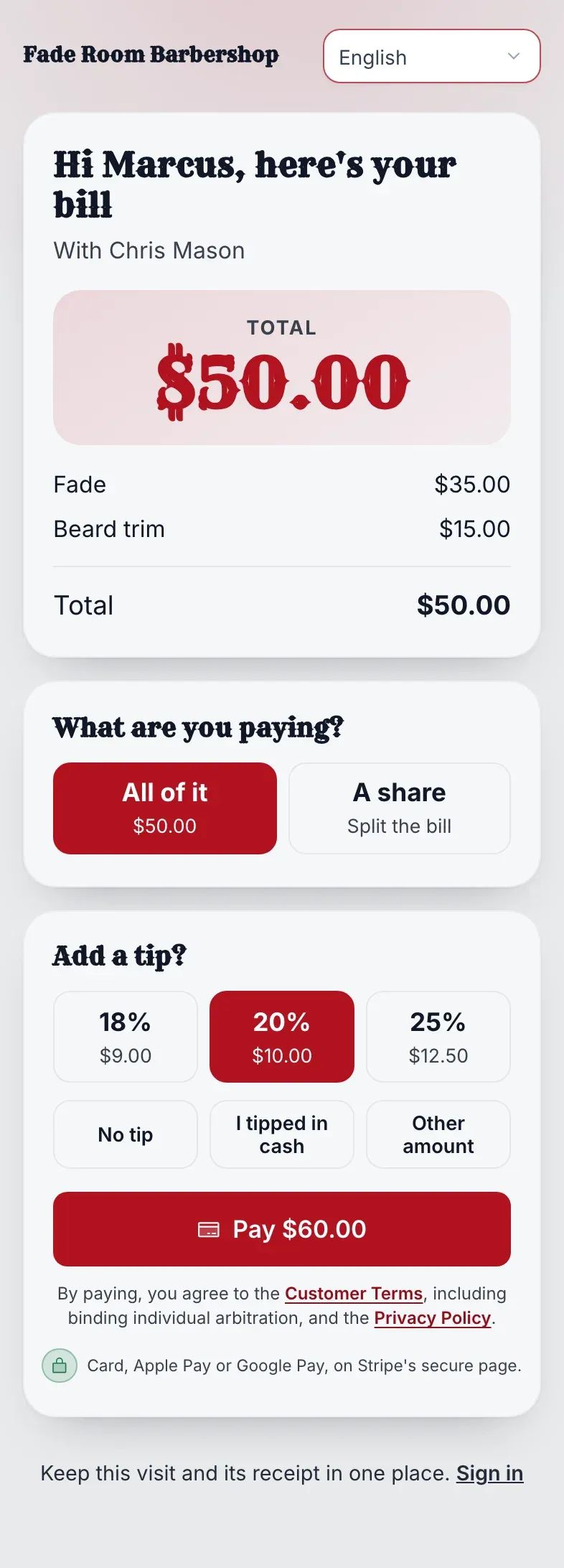
Their phone: Pay
Scan the QR, tip and pay.
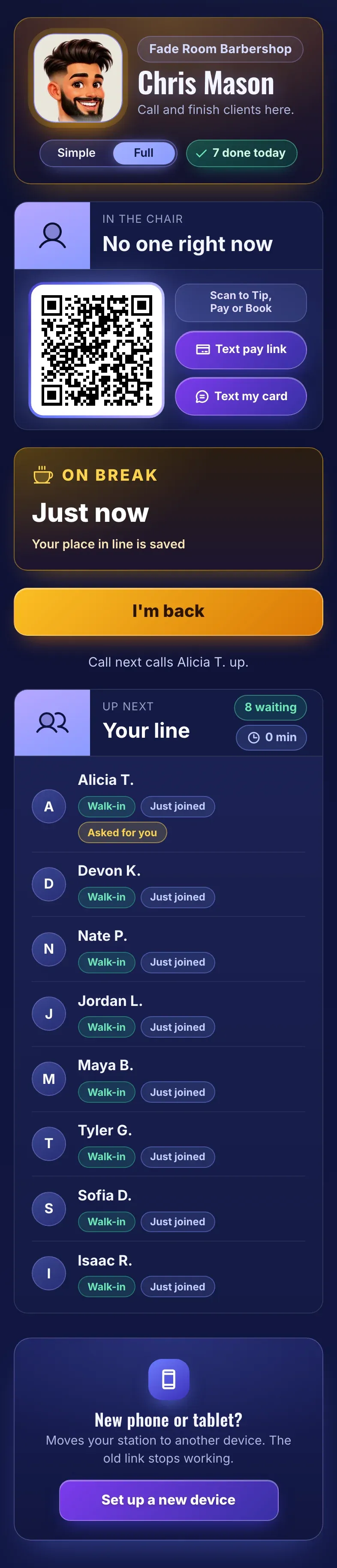
iPhone: On break
Your place in line is saved.
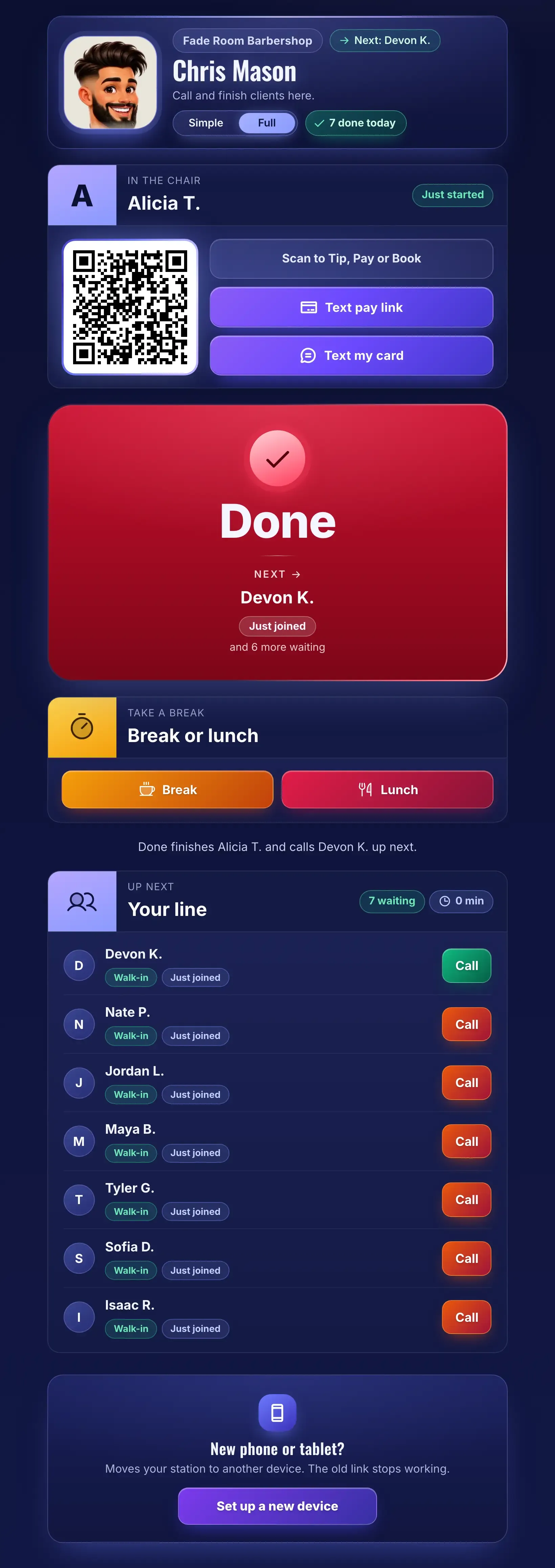
iPad
Made for mounting at each station.
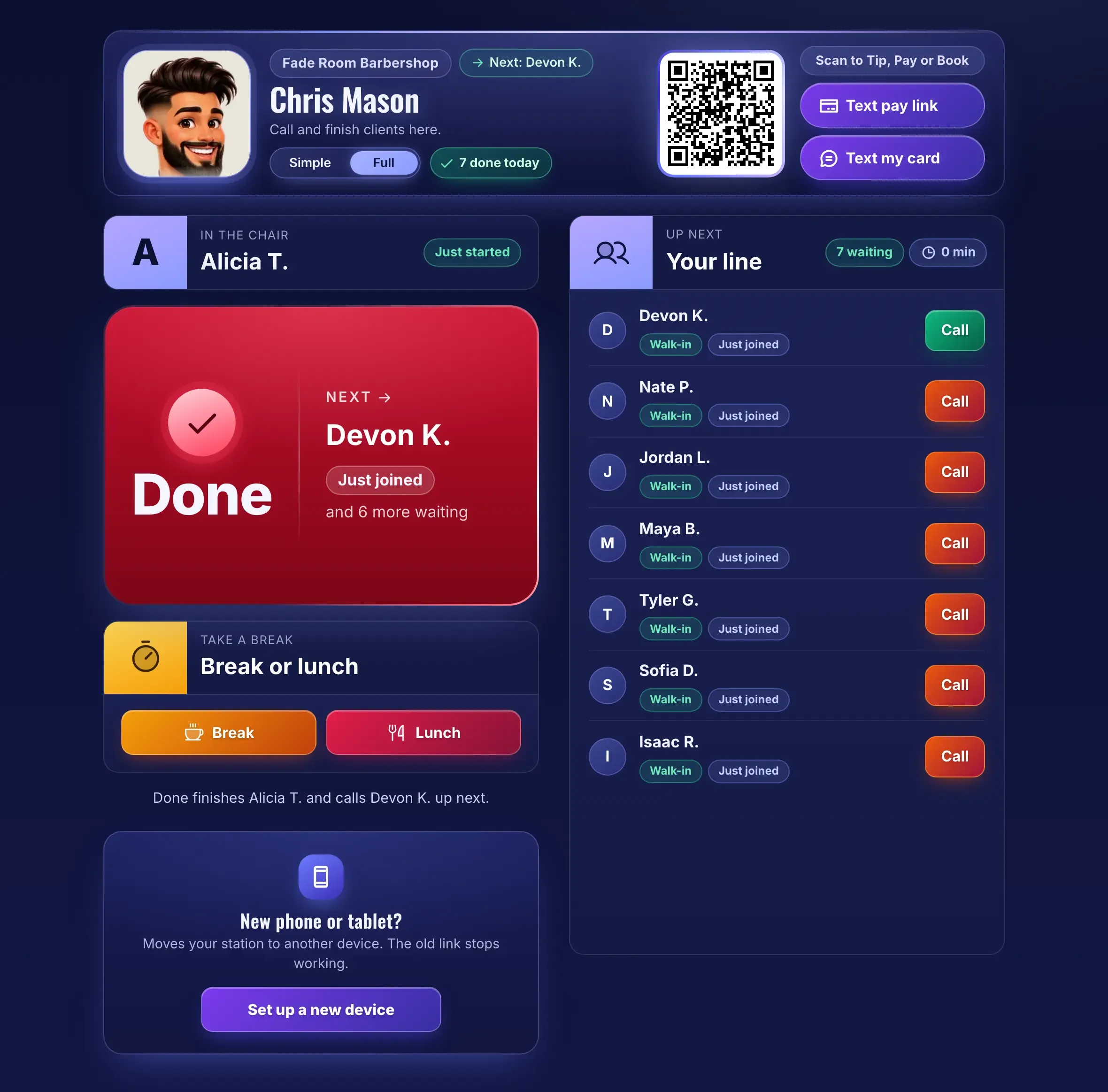
iPad, wide
Your line beside the chair.
- NextUpDone, next
Apple Watch Shortcut
“Done, next”. About a minute to add.
A Flic button or any app that can send a POST to the station address works too. A Galaxy Watch has no one-tap setup yet. Example business.
One press
Four things happen
Fade Room Barbershop
72°H 78°L 61°3:25PM
Now Calling
Marcus J.
Chrisis ready for youUp Next
- 1Alicia T.~6 min
- 2Devon K.~11 min
- 3Nate P.~16 min
TV calls them by name
This page updates live. Feel free to step out.
In line as Marcus J. · waiting for ChrisLeave the lineMarcus J.
You're up!Chris is ready for you.Head to the front now.Running late?Let Fade Room Barbershop know when you'll be there.On my way, 2 min5 min10 minCan't make it?I can't make it
Customer’s phone
One tap
Tap to call next
Ready to check out
Recorded in the log
Example: sample names and times.
A day at the chair
The trips you don’t take
Example day: 16 clients, two trips to the desk avoided for each.
Walk to the deskWalk back
- Walk to the front desk4 actions
- Station Screen1 action
- Button or watch1 action
Set up in a minute
Make a link, scan it once
Owners and managers do it in Team, under Station Screens.
Team
Station ScreensA private link for each team member, to call and finish clients from the chair.
Team memberChrisLabel (optional)OptionalMake link
Shown once. Copy it now.app.nextupwalkin.com/station/k7Q2…Copy link
Team memberLabelLast usedChris—Today, 10:09 AMRenameRevokeAndre—YesterdayRenameRevoke
- Scan the QR code
- Add it to the home screen
- Revoke any time
Example. Also on the Staff Screen’s “Screens for this location” and the setup wizard.
Your line
Everyone waiting for you
Walk-ins and appointments, in order.
- DDevon K.Appointment: Booked 2:30 PM
- AAlicia T.Walk-in: Waiting 6 minAsked for you
- NNate P.Walk-in: Waiting 3 min
Skip Devon K., take Alicia T.
- Asked for you, firstThen “anyone”.
- Skip ahead to a walk-inGreen only when it would skip whoever is next.
- Done todayA count, and the list behind it.
- Bad signal?It says so and retries on its own.
Example: sample names. Simple hides the extras, Full shows them.
A glance
How long has the line waited?
The color tells you whether to hurry. Pick one to jump to it.
- Longest
- 18 min
- Shortest
- 5 min
- Walk-ins counted
- 4
- Under 20 min
- 20 to 44 min
- 45 min or more
Walk-ins in Up next, from when each joined. Appointments aren’t counted.
Example: sample waits.
Safe by design
Hard to press by accident
First names only
First name and last initial.
Says what it will do
The button names who it finishes and who it calls.
No double calls
A second press within 5 seconds does nothing.
Undo
Take back a recent Call, Start or Done.
A private key
Shown once. Revoke it and it stops at once.
On the record
Every press is in the Activity log. Payment stays on the Staff Screen.
- 1 linkfor each team member, private to them
- 1 tapto finish a client and call the next
- 0 appsto install: it is a link in any browser
- 5 secin which a second press does nothing
How it works
Set up in four steps.
- 1
Make a link
In Team, under Station Screens, pick the team member and click Make link.
- 2
Open it where they work
Scan the QR code or open the link on a phone or tablet, and add it to the home screen.
- 3
Or add a button or watch
Set up a Flic button, or add the “Done, next” Shortcut to an Apple Watch.
- 4
Call next, Start, Done
Tap through each client. Done finishes them and calls the next person.
Who it’s for
Made for the way you work.
Barbershop
A barber taps Done at the chair and the next regular is called, with no walk to the front desk.
Hair salon
A stylist finishes a client, and the person who asked for them by name is called next.
Nail salon
Each tech keeps a station open on a phone at the table, and the front desk takes payment.
Tattoo studio
An artist taps Done at the chair and the next client is called without leaving the room.
Pet grooming
A groomer’s hands are full, so a smart button on the table calls the next owner.
Service counter
Each window or counter has its own link and calls its own next person.
Questions
Good questions, straight answers
What is a Station Screen?
A private link for one team member. It opens a screen with one big button: Call next, then Start, then Done. It is on every plan and is not for restaurants.
Who makes the link, and where?
Owners and managers, in Dashboard, then Team, under Station Screens. Pick the team member, add a label for the list if you want, and click Make link. It is shown once, with a QR code.
What does Done do?
It finishes that person’s current client and calls the next person waiting for that team member: people who asked for them first, then “anyone”. If nobody is waiting, it finishes the visit and says “Nobody’s waiting”.
Can a double tap call two people?
No. A second press within 5 seconds does nothing and shows the last result. You can also Undo a recent Call, Start or Done.
Does it work on an Apple Watch?
Yes, through the “Done, next” Shortcut: about a minute to set up, no typing, and you can put it on a watch face. The NextUp Apple Watch app is not available yet.
What about a Galaxy Watch or other smart buttons?
A Flic button can send a POST to the station’s api/station address with one click. A Galaxy Watch has no one-tap setup yet; any app that can send a POST to that address works.
Is it safe to leave on a shared phone?
Treat the link like a key. Anyone with it can press the button, so keep it to the team member and revoke it if it gets out. Revoking stops it at once, and every press is in the Activity log.
Does the client get notified?
The TV calls their name and their page changes to “You’re up!”. Clients who allowed notifications in the app or browser get an alert.
Can I take payment on the Station Screen?
No. Done hands the visit to the front desk, where payment is taken on the Staff Screen.
What do the average wait colors mean?
Blue is under 20 minutes, amber is 20 to 44 and red is 45 or more. It averages how long the walk-ins in Up next have waited, counted from when each joined. Appointments are not counted.
Next
Goes well with
Put the button at the chair
Start the free trial, make a Station Screen link and call your first client from it.