Buying Guide
A walk-in waitlist app for the iPhone and iPad you already own
You already own a front desk. It is the iPhone in your pocket and the iPad in the drawer that only comes out for music. Meanwhile the line runs off a clipboard by the door, and every "how long?" stops a cut. This guide from NextUp Walk-in shows what a walk-in waitlist app should do on an iPhone and iPad, walks through a busy Saturday with one, and shows how to set it up before your next rush. The NextUp app for iPhone and iPad is available now on the App Store.

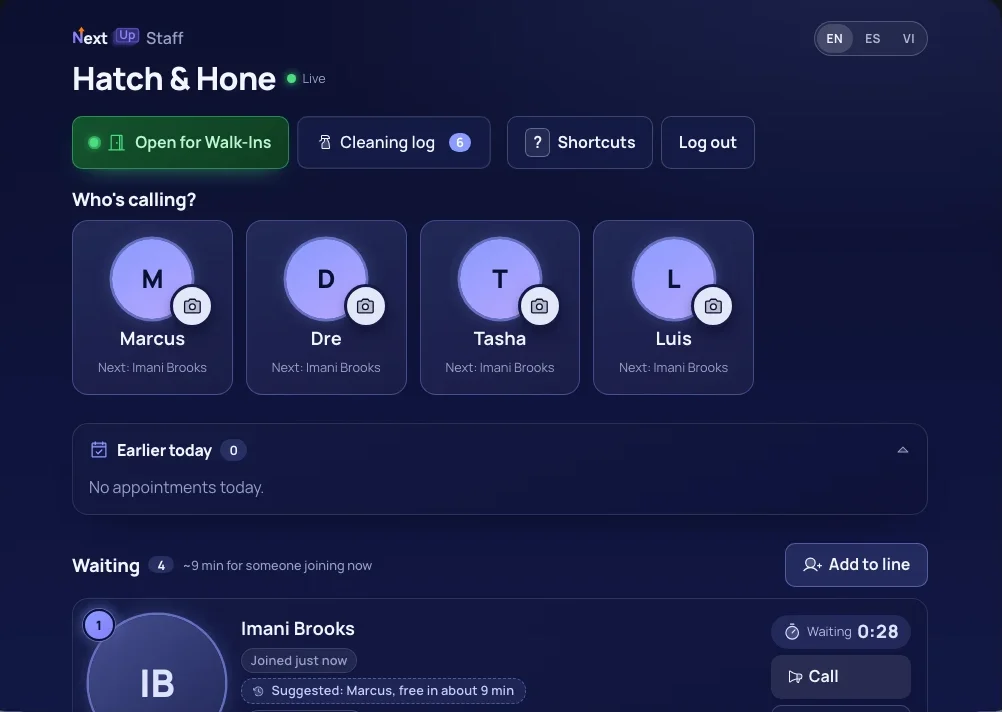
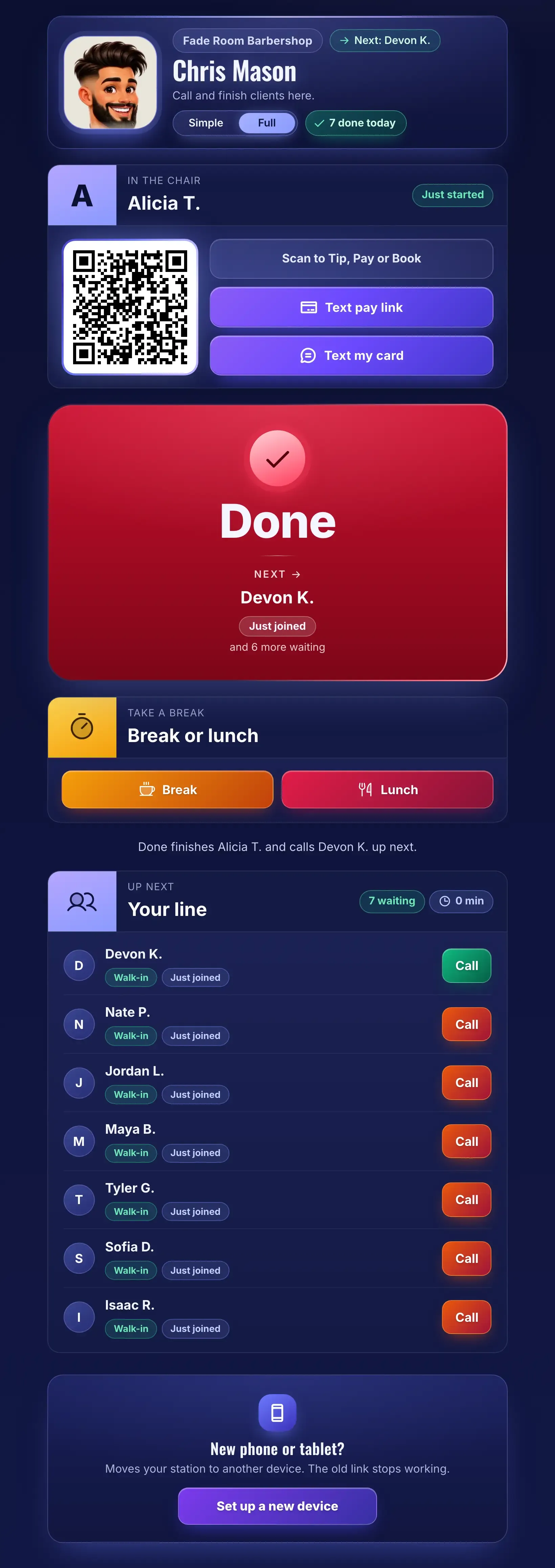
Slide 1 of 3
What to look for in an iPhone or iPad waitlist app
A waitlist app should take work off the shop, not add a new chore. Before you pick one, check five things:
- Customers join without downloading anything. A walk-in will not install an app to get a haircut.
- The iPad by the door stays on check-in. If a customer can swipe out to your settings, it is not a kiosk.
- Your team runs the line from the phone in their pocket, not from one screen everyone has to walk to.
- Waits come from your real service times, so "about 20 minutes" means something.
- The lobby TV shows who is next, so nobody has to ask the room.
The table below shows how each Apple device fits. You probably own most of it already.
Which Apple device does which job
| Your iPhone | The dashboard, the Staff Screen and your own Station Screen, with notifications when someone joins or doesn’t show | The NextUp app, App Store |
|---|---|---|
| An iPad at the counter | The Staff Screen, either way up: call next, mark a no-show, add a walk-in | The NextUp app, or the Staff Screen link in Safari |
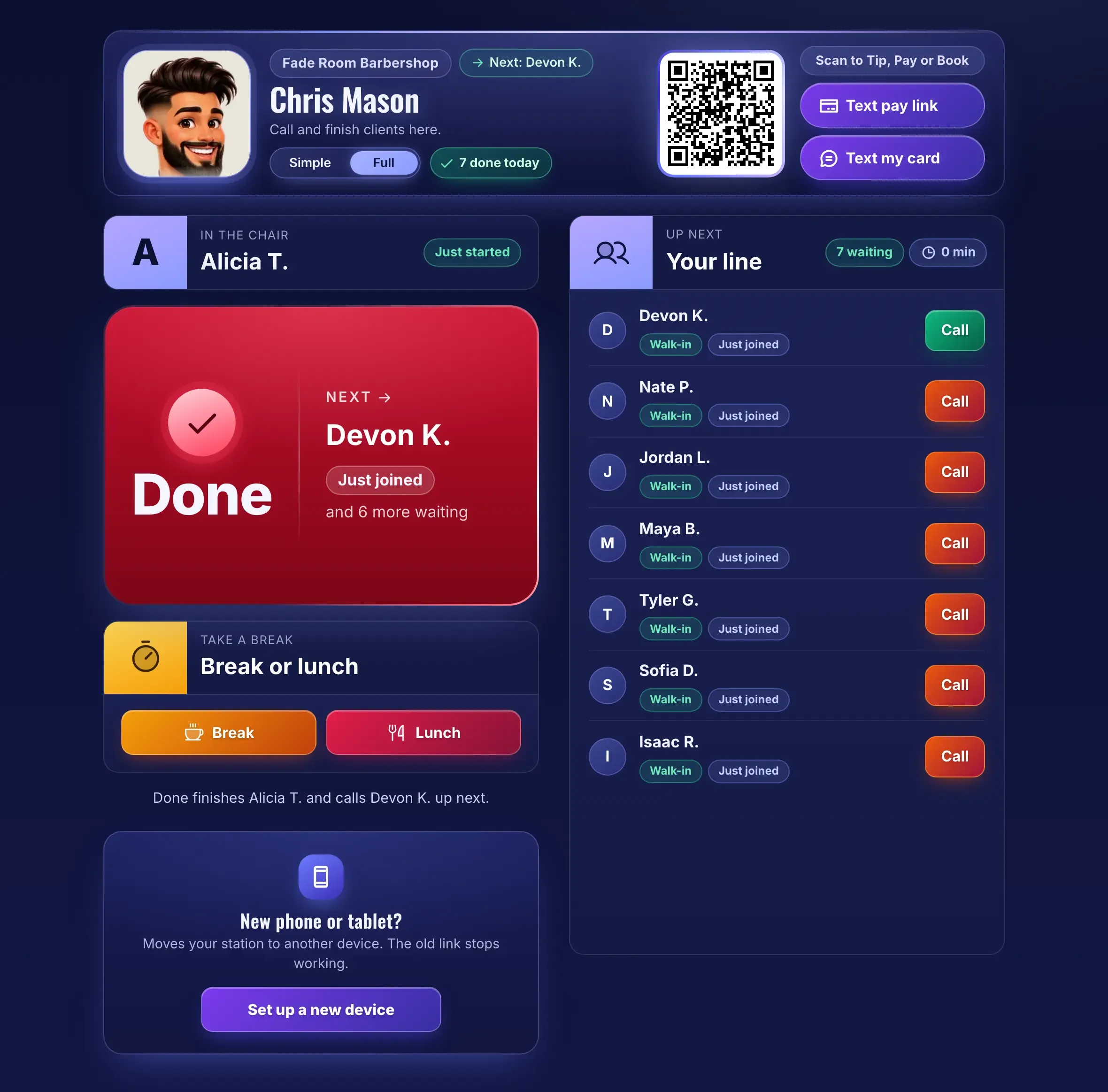
| An iPad at a chair | One team member’s Station Screen: who is in the chair, Done, and who is next | Their private Station Screen link |
| An iPad by the door | The Door Tablet: walk-ins add themselves, then it resets for the next person | The NextUp app, locked with Guided Access |
| Your Apple Watch | Who is in the chair, who is next, how many are waiting, and one big Done, next button | Comes with the NextUp app for iPhone |
| Your customers’ phones | Join from your QR code or link, then watch their place and wait | Nothing to install. The NextUp app is optional |
How the NextUp app runs a walk-in line on Apple devices, and where each piece comes from.
A Saturday with the NextUp app
Here is what a busy day looks like when the line lives on your iPhone and iPad instead of a clipboard.
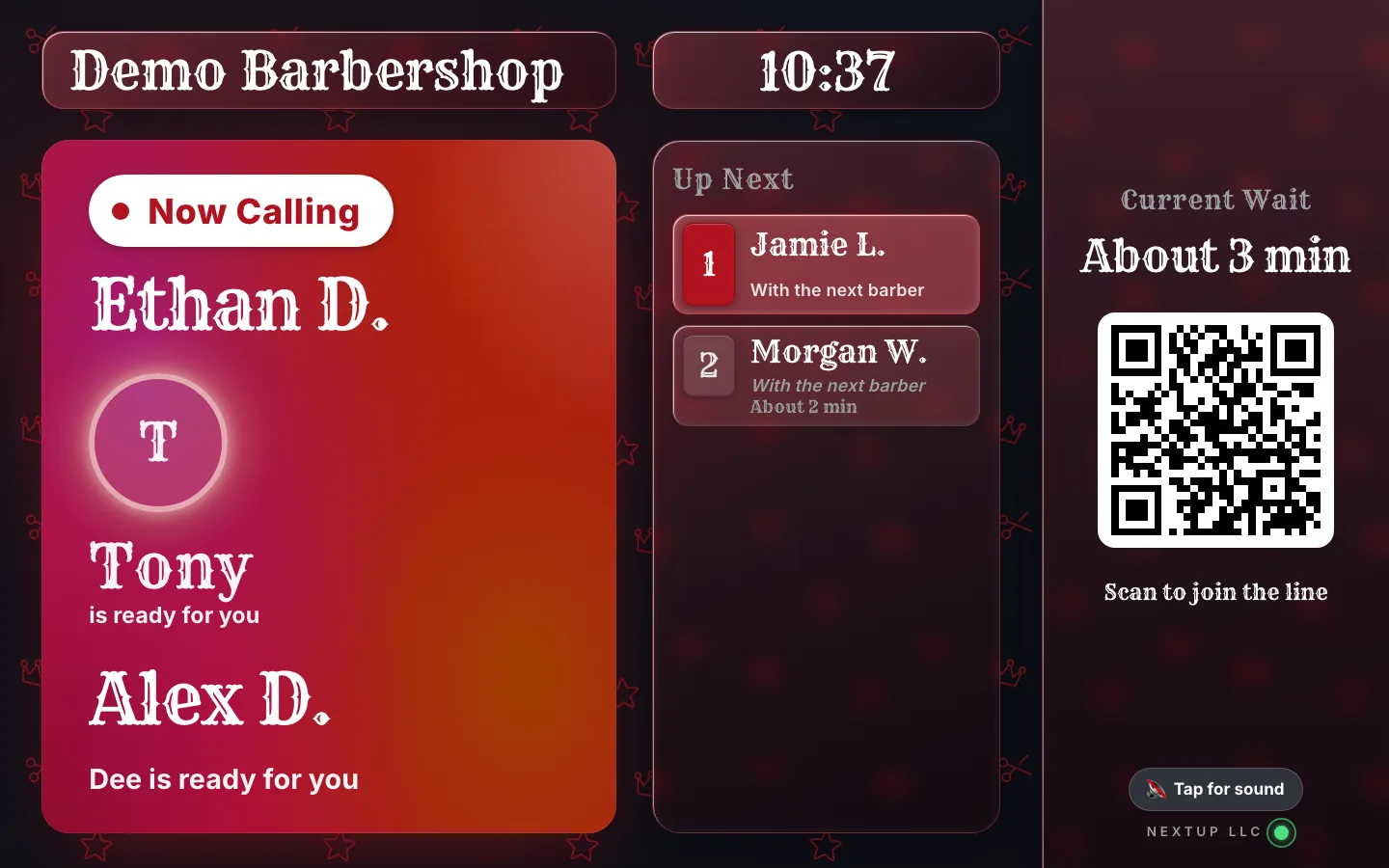
- Before you open. The iPad by the door is plugged in and on check-in. The TV shows your line and a QR code. On the Staff Screen, you tap Open for Walk-Ins.
- The first walk-in. They scan the code in your window, type a name and see their place and wait. Your phone tells you someone joined, and where they are in line.
- The rush. Four people are waiting. Nobody crowds the counter: they can see the wait, and most go get a coffee. Their phone keeps their place.
- At the chair. A barber finishes a fade and taps Done on their watch or Station Screen. The next person is called, their phone says "You’re up!" and the TV shows their first name and last initial.
- Someone gives up. They tap "Can’t make it?" and leave the line. Everyone behind them moves up, and nobody has to cross out a name.
- Someone doesn’t come back. Mark a no-show from the Staff Screen or your phone, and call the next person.
- Closing time. Tap the button again and it reads Closed to Walk-Ins; the TV says you are not taking walk-ins right now. Anyone already in line is still served.
Nobody stopped a cut to answer "how long?" That is the whole point.
Your iPhone: the whole line in your pocket
Get the NextUp app on the App Store and sign in with your email, Google, Apple, Facebook or Microsoft. Your iPhone now has the dashboard and the Staff Screen: call the next person, add a walk-in at the chair, mark a no-show, without walking to the front.
Each team member also gets a Station Screen, a private link that shows only their chair: who is in it, a big Done button, who is next and a Break or Lunch button. It is on every plan. Open it on your iPhone and keep it by the mirror.
Turn on "On my phone" under Account, Notifications, and your phone tells you when someone joins the line, with their place in line, and when someone doesn’t show. Each person picks their own notifications, so the owner can hear everything and a barber can keep it quiet. You can also turn on bookings and reviews.
Lock it with Face ID. Under Account, "Lock this phone’s app" asks for your face, fingerprint or passcode when the app opens and after a minute away. Your business stays private if you hand your phone to a customer to look at a photo.
You sign up for your business once on the website. After that, you and your team sign in on your own phones. Someone on the team uses Android? The same NextUp app is on Google Play.

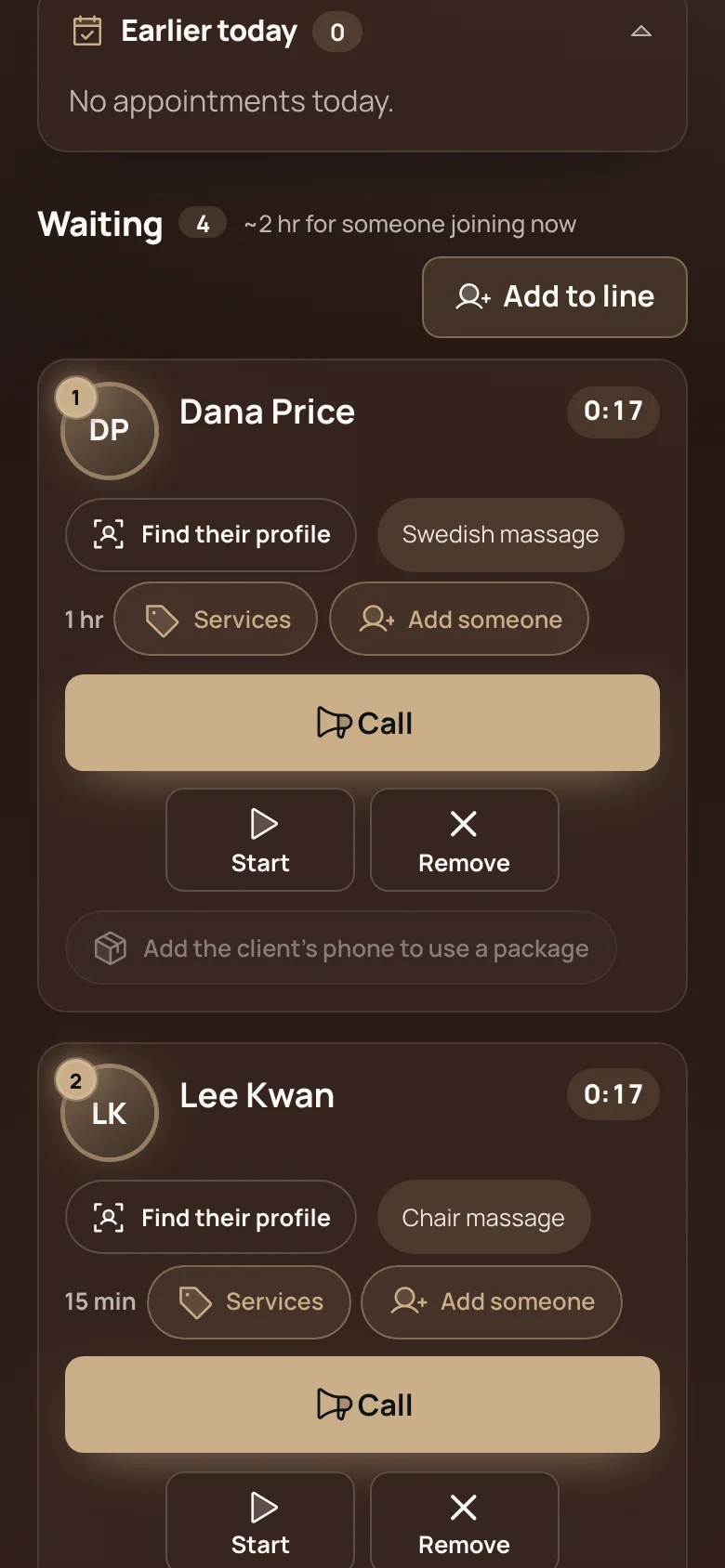
iPhone, iPad, Android and TV
Get the NextUp app
Free for iPhone and iPad on the App Store, and also available on Android on Google Play. Sign in with your NextUp account.
Your Apple Watch: Done, next from your wrist
The NextUp Apple Watch app comes with the NextUp app for iPhone. In Staff, Station Screens, tap Pair a watch next to a team member. It shows an 8-digit code, good for 10 minutes and one use. Type it on the watch and tap Pair.
The watch shows who is being served, who is next and how many are waiting, with one big Done, next button. Finish a cut, tap the watch, and the next person is called. No clippers down, no phone out.
Your iPad at the counter or at the chair
An iPad at the counter makes a good front desk. Sign in to the NextUp app, or open the Staff Screen link in Safari, and enter your location’s staff PIN. Whoever is free taps their name under "Who’s calling?", then calls the next person. The Staff Screen works either way up, so a stand or a wall mount both work.
The Staff Screen also adds walk-ins who would rather tell you their name, marks no-shows, and opens or closes the line. It comes in English, Spanish and Vietnamese, so each person can pick their own.
An iPad at a chair runs that person’s Station Screen. Stand it up and it is a tall view of the chair and the line. Turn it wide and the chair sits on the left, the line on the right. It is the same private link as on their phone, so it is one less thing to set up.
Any iPad you already own will do. Keep it plugged in and set Auto-Lock to Never so it is ready when someone looks.
Your iPad by the door: a check-in that stays put
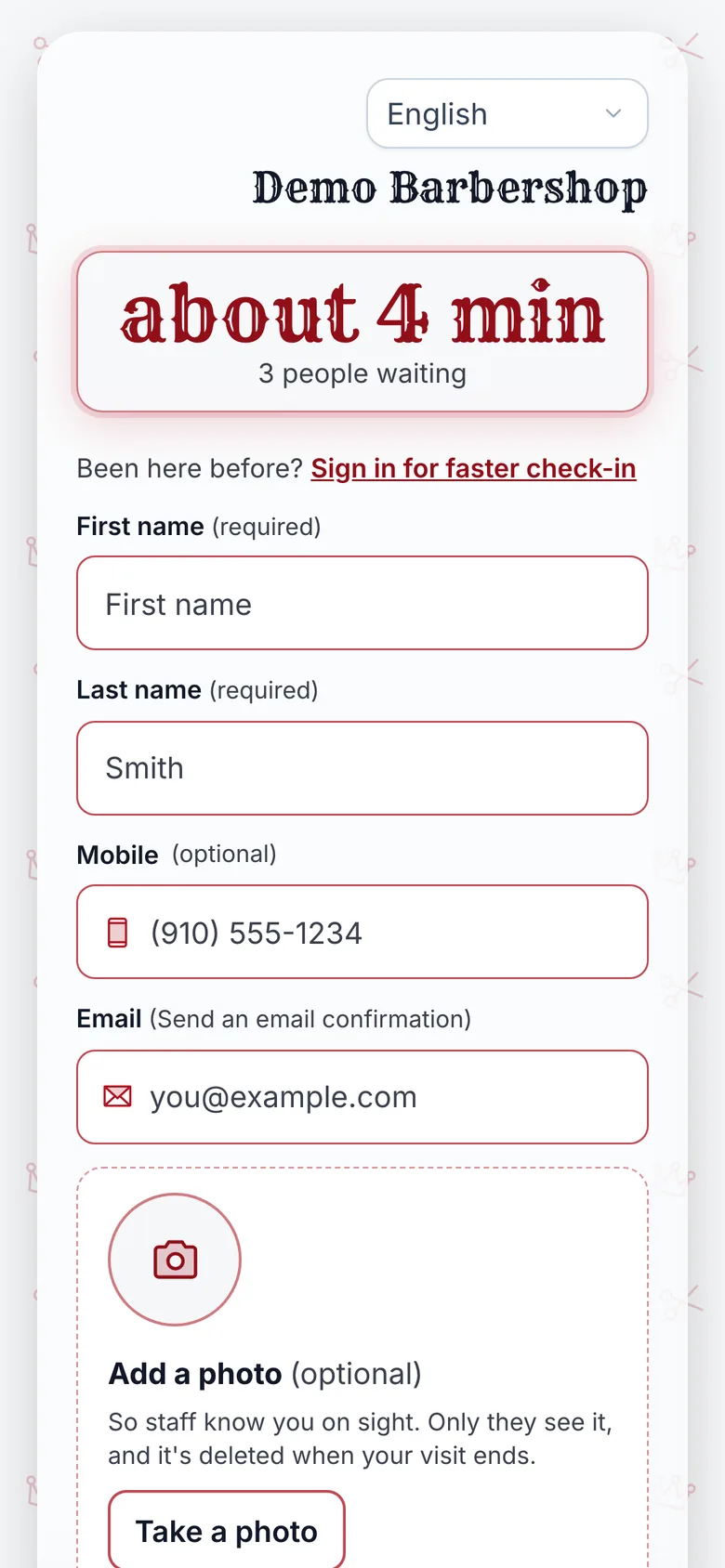
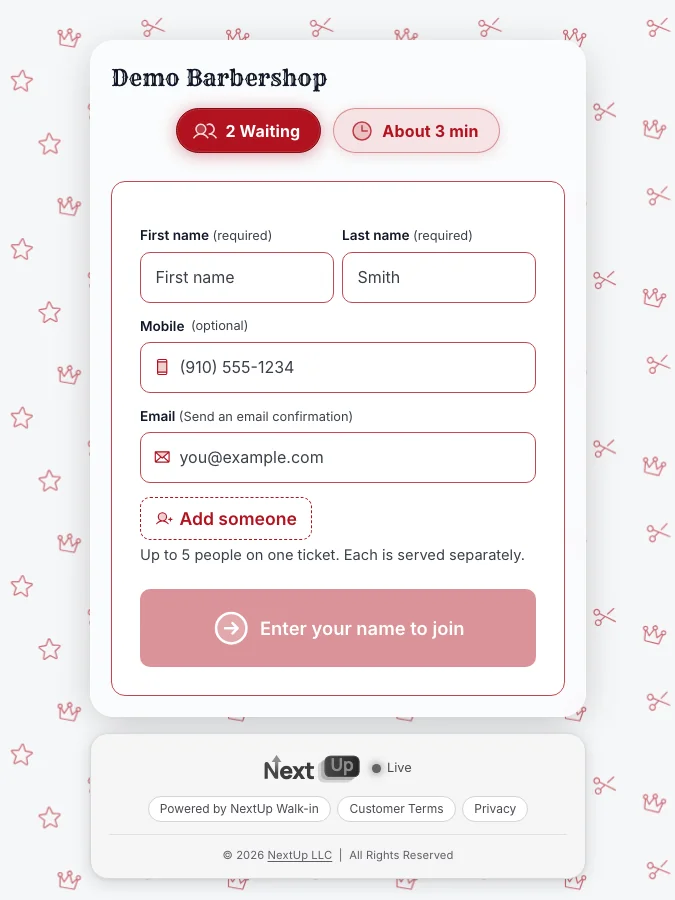
Open the NextUp app on the iPad and tap "Using this tablet at your door? Set it up as a Door Tablet". Sign in as the owner or a manager and pick the location. The app signs you out of the iPad and opens the Door Tablet, so nobody who walks up later lands in your dashboard.
Then lock it with Apple’s Guided Access: turn it on once in Settings, Accessibility, choose a passcode only staff know, and triple-click the top button to start. Customers can’t leave the check-in screen.
Walk-ins type their first and last name, see their place and the estimated wait, and the screen resets for the next person. It never saves one customer’s details for the next.
Keep it plugged in, in portrait, with Auto-Lock set to Never. One catch: Guided Access ends when an iPad restarts, so after a restart, open the app and start it again. Our check-in kiosk tablet guide covers stands and mounting.
See it on your own line
Free needs no card: pick it at sign-up. The 14-day trial has every Pro feature, once per business. A card is needed to start, but nothing is charged until the trial ends, when the plan is charged unless you cancel first.
Your customers’ phones: no app needed
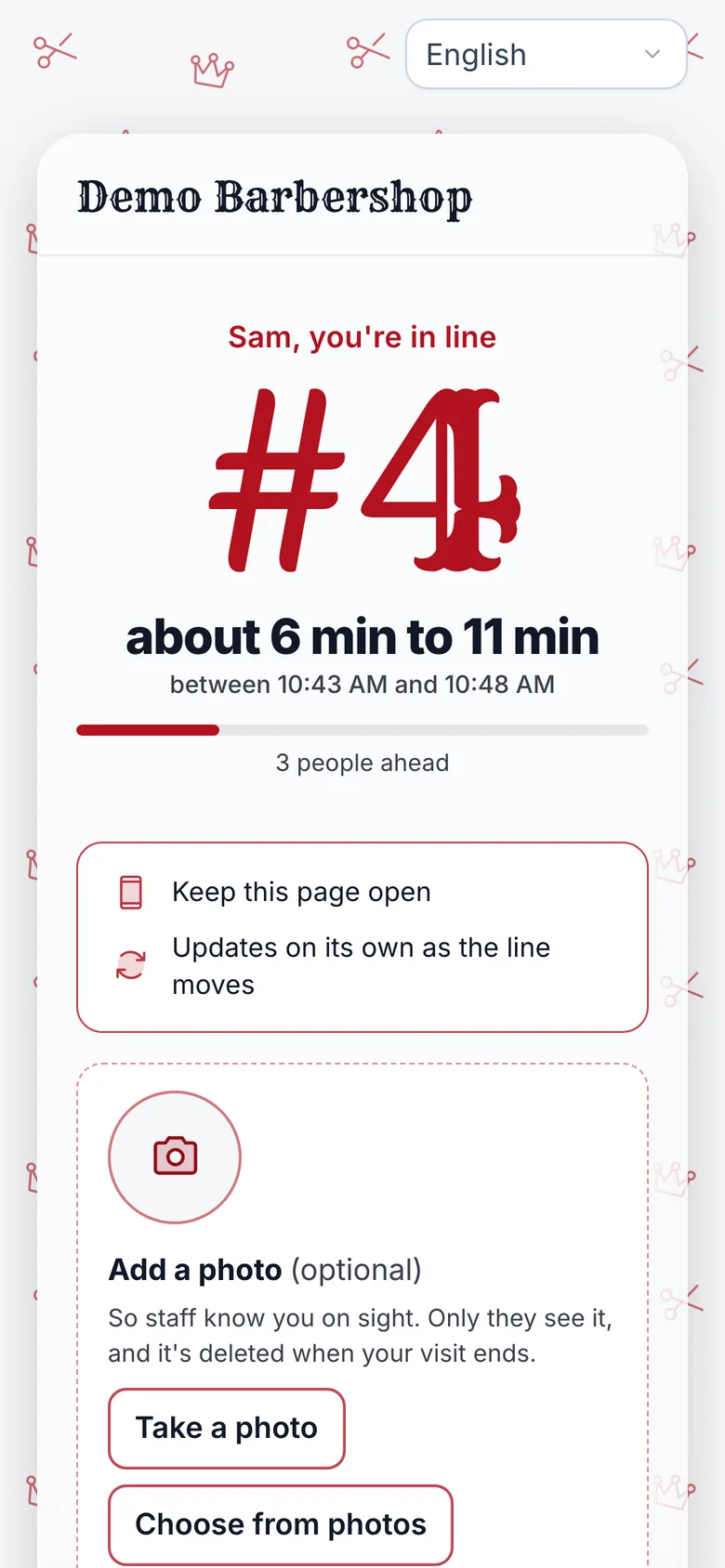
Customers join in their phone’s browser. They scan the QR code in your window or on the TV, type a name, and their phone shows their place in line and an honest wait range. No app, no account.
When it is their turn, the page changes to "You’re up!" and, in a barbershop, "Come have a seat in the chair." If plans change, "Can’t make it?" takes them out of the line in one tap.
On paid plans, customers who agree to texts also get a text confirming their spot and another when it is their turn. Free has no texts, and the page on their phone works either way.
Regulars who want more can get the free NextUp app for iPhone, iPad or Android: a notification the moment they are called, even with the app closed, and your shop saved in My Places to join again in a tap.
Why it beats a clipboard
A clipboard is free, and it works until the third person in line asks how long. Paper can’t tell anyone the wait, can’t follow a customer to the coffee shop, and can’t call the next name. Someone on your team does all of that, between clients.
The NextUp app does the same jobs from the devices you already carry. The table walks through the same Saturday both ways.
A clipboard next to the NextUp app
| Someone walks in | Finds the pen, writes a name you may not be able to read | Scans the QR code or types a name on the iPad by the door |
|---|---|---|
| “How long?” | Someone stops working to guess | An estimated wait, worked out from your service times, before they join |
| While they wait | They stay in the lobby so they don’t lose their place | They wait anywhere and watch their place on their own phone |
| Who is next | Whoever reads the sheet, in whatever order it looks like | Called in order from the Staff Screen, your phone or your watch |
| Someone leaves | Their name stays on the list until someone crosses it out | “Can’t make it?” takes them off the line in one tap |
| Names on show | Every full name on the sheet, for anyone at the counter | The TV shows first name and last initial |
| End of the day | The sheet goes in the bin | Insights on visits, waits and busy hours |
The same Saturday, run two ways.
An iPad you own or a kiosk you buy
A check-in kiosk is an iPad-sized screen on a stand. If you already own an iPad, you may not need to buy one. The Door Tablet does the kiosk’s job: one form, a clear button, then it resets.
A dedicated kiosk can still make sense, for example if you want a floor stand that is hard to move. If you are pricing one, ask the questions below before you buy.
An iPad you own, or a check-in kiosk you buy
| What do I buy? | Nothing new if you own an iPad, plus a stand or mount | The kiosk itself, and often its own software |
|---|---|---|
| What does the check-in software cost? | The Door Tablet is on every plan, Free included | Ask the vendor |
| Does it stay on the check-in screen? | Yes, with Apple’s Guided Access | Usually built in |
| Is it the same line my team sees? | Yes: the Staff Screen, phones, watch and TV update together | Ask whether it connects to the rest of your line |
| What if it breaks? | Set up any other iPad, or an Android tablet, in a few minutes | Ask about repairs and spares |
Questions to ask before you buy kiosk hardware. Check any kiosk’s own pricing on the day you buy.
More than one location, more than one language
Each location gets its own line, its own Door Tablet, TV and QR code. In the NextUp app, the location picker at the top of the dashboard switches between them, so an owner with two shops checks both from one phone.
Customer screens come in seven languages: English, Spanish, Vietnamese, Korean, Portuguese, Haitian Creole and Simplified Chinese. The join page starts in the language of the customer’s phone, and they can change it.
It is not just for barbershops. Salons, nail studios, spas, pet groomers, tattoo studios, repair counters and every business with a line use the same app, with the words for their trade.
How NextUp Walk-in runs on the devices you own
On a Roku, add the NextUp app at my.roku.com/add with the code NEXTUPTV. Fire TV, Apple TV and Google TV get it from their own app stores, and the TV pairs with a short code.
The Free plan includes every screen: 1 location, 1 team member and 50 check-ins a month, no card needed. When you add your team or outgrow 50 check-ins, Walk-in starts at $29 a month for your first location and includes 3 team members, then $10 a month for each extra. Every paid plan starts with a 14-day free trial with every Pro feature, once per business. A card is needed to start, but nothing is charged until the trial ends, when the plan is charged unless you cancel first.
See all the apps, the line and TV, the Door Tablet, pricing.
One line on your iPhone, your iPad, your watch and the lobby TV
The NextUp app
- The NextUp app for iPhone and iPad, available now on the App Store, with the Apple Watch app inside.
- A Door Tablet on any iPad, locked to check-in with Guided Access.
- Customers join from a QR code, no app and no account, and watch their place on their own phone.
- A lobby TV app for Roku, Fire TV, Apple TV and Google TV, with first name and last initial on screen when someone is called.
- Every screen included, on every plan, Free included.
Free needs no card: pick it at sign-up. The 14-day trial has every Pro feature, once per business. A card is needed to start, but nothing is charged until the trial ends, when the plan is charged unless you cancel first.
Set it up before Saturday
You can do all of this in an afternoon:
- Start on Free on the website and add your services, so waits come from your real times.
- Get the NextUp app on your iPhone and turn on "On my phone" notifications.
- Set up the iPad by the door as a Door Tablet and start Guided Access.
- Pair the TV with its short code, and put the QR code in your window.
- Run a test walk-in from the door to the TV, then call it from your phone.
Your iPhone runs the line. Your iPad checks them in.
Start on Free, add the NextUp app from the App Store, and run a test walk-in from the door to the TV today.
Free needs no card: pick it at sign-up. The 14-day trial has every Pro feature, once per business. A card is needed to start, but nothing is charged until the trial ends, when the plan is charged unless you cancel first.
Questions
Is there a walk-in waitlist app for iPhone and iPad?
Yes. The NextUp app for iPhone and iPad is on the App Store. Owners and teams use it for the dashboard, the Staff Screen and notifications, and an iPad can run as the Door Tablet where walk-ins check themselves in.
Do my customers need to download an app?
No. Customers join from your QR code or link in their phone’s browser, with no app and no account. The NextUp app is optional for regulars who want a notification when they are called.
How do I lock an iPad to the check-in screen?
In the NextUp app on the iPad, tap "Set it up as a Door Tablet", sign in as the owner or a manager and pick the location. Then start Guided Access with a triple-click of the top button. Customers can’t leave the check-in screen until staff end Guided Access with the passcode.
Does the iPad work sideways?
The Staff Screen and the Station Screen work either way up. Held wide, the Station Screen shows the chair on the left and the line on the right. For the Door Tablet, portrait works best.
Do I need an iPad at every chair?
No. Each team member can open their own Station Screen on their phone, or pair an Apple Watch. An iPad at a chair is an option, not a requirement.
Does it work with an Apple Watch?
Yes. The Apple Watch app comes with the NextUp app for iPhone. Pair it with an 8-digit code from Staff, Station Screens, and the watch shows who is being served, who is next and how many are waiting, with a Done, next button.
Can I lock the app with Face ID?
Yes. Under Account, turn on "Lock this phone’s app". The app then asks for your face, fingerprint or passcode when it opens and after a minute away. Customer pages never lock.
What if some of my team use Android?
The same NextUp app is on Google Play for Android phones and tablets. Everyone sees the same live line, whatever phone they carry.
Is the door iPad safe for customer details?
The Door Tablet never keeps one customer’s details for the next: after each check-in it resets to an empty form. The app signs the owner out of that iPad when it becomes a Door Tablet.
Is the iPhone and iPad app free?
The app is free to download, and the Free plan includes every screen: 1 location, 1 team member and 50 check-ins a month, with no card. Paid plans add a team and more check-ins, starting with a 14-day trial.

Ready to try it?
NextUp Walk-in is a walk-in queue for barbershops, salons, restaurants, and service shops. Customers join from the phone they already have. No app required. The trial is 14 days, with every Pro feature.