Equipment
The check-in kiosk tablet: pick it, lock it, mount it by the door
Every chair is busy, the door opens, and nobody is free to say hello. The new walk-in hovers, asks who is last, interrupts a cut to ask how long, or quietly leaves. A tablet by the door fixes that moment. This guide from NextUp Walk-in covers which tablet to buy, how to lock it to the check-in screen, where to put it and what a walk-in sees when they join.
Why the door needs its own check-in
The front door is a job, and in most walk-in shops nobody has time to do it. The barber, stylist or tech closest to the door stops mid-service to answer the same three questions: who is last, how long, and can I get anyone.
A crowded doorway costs more than a few minutes. In a Sogolytics survey reported by Retail Brew on Oct 13, 2026, crowds were the top reason shoppers gave for skipping stores this holiday season (52%), ahead of long checkout lines (33%). In a Censuswide survey for Invoice Home (Sept 10, 2026), 23% said a line of more than 5 to 10 minutes would make them walk away from an in-store purchase.
That is retail data, not haircuts. But the feeling at the door is the same: a guest who cannot tell where they stand starts looking for the exit.
A tablet by the door gives every walk-in an answer before anyone looks up from the chair.
What a walk-in does at the door tablet
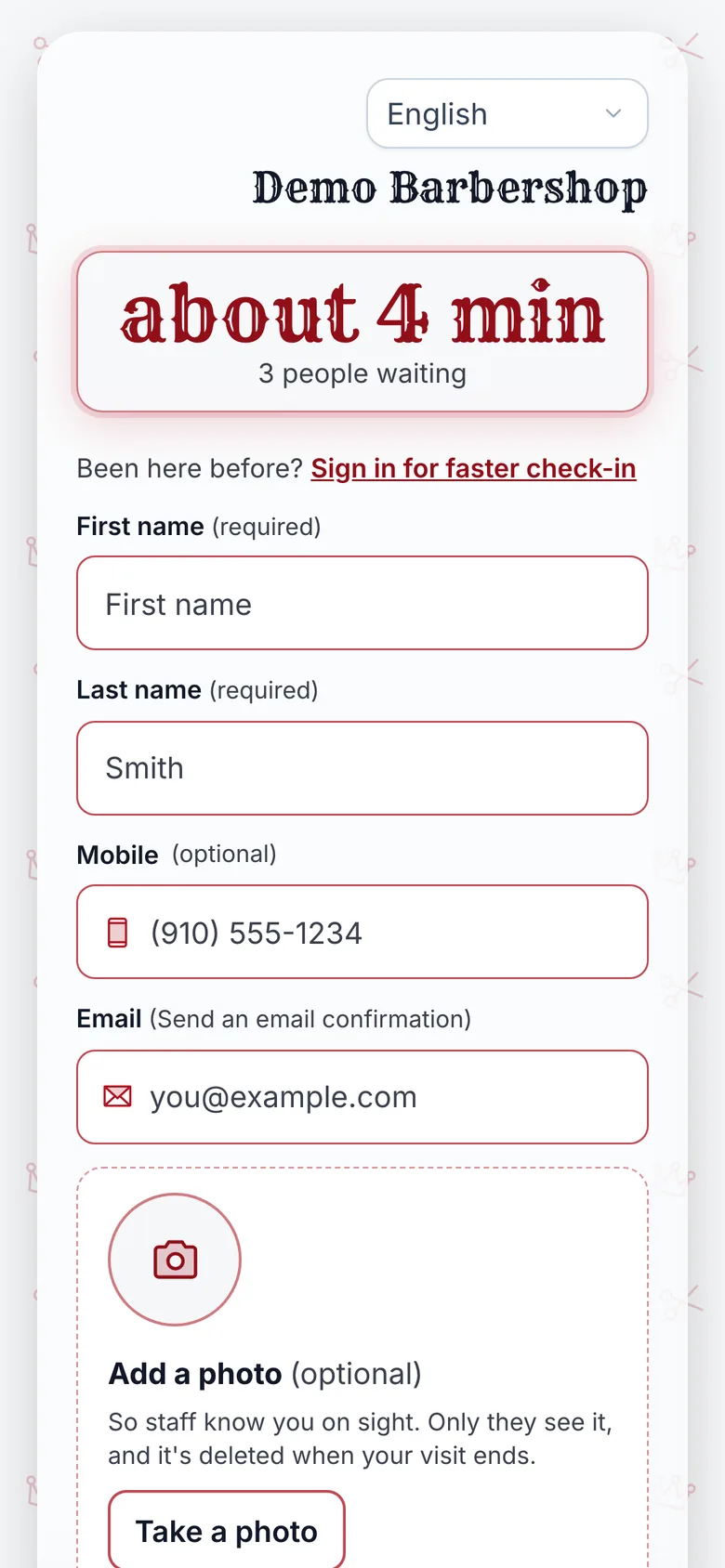
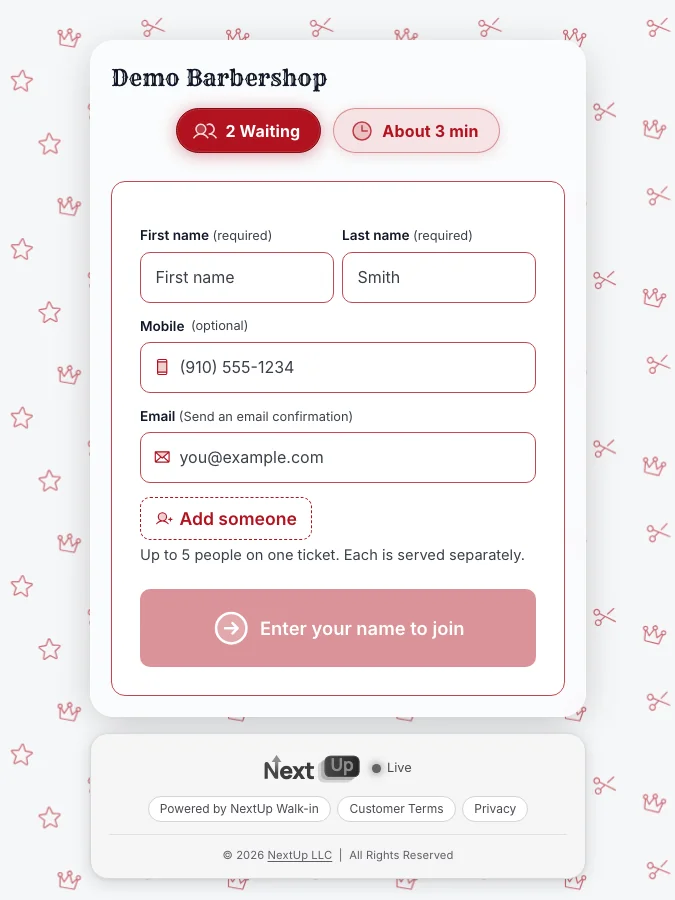
One form, and a name is enough. The door tablet shows a single "Join the line" form. You can also ask for a phone number, your services or your own intake questions, and who they would like, or anyone.
The moment they join, the screen shows their place in line and the estimated wait. A QR code on that screen puts their place on their own phone, so they can grab a coffee or sit in the car and come back when they are close.
Your Staff Screen and the lobby TV show them at the same time. It is the same line as the QR at the door and the link on your website, not a second list.
Then the screen clears and goes back to "Join the line" for the next person, with no staff needed.
Pick a tablet you will not have to babysit
You do not need a special kiosk device. Any iPad or Android tablet runs the door tablet in its browser. Pick for screen size, a lock you can trust and years of updates.
An 11-inch screen is the sweet spot for typing a name standing up. A 13-inch screen reads better from across a lobby and pairs well with a floor stand.
Skip Amazon Fire tablets for this job. They do not come with Chrome, adding a page to the home screen is unreliable, and locking them to one page usually needs extra software.
Which tablet to put by the door
| Good | Samsung Galaxy Tab A11+ | The 11-inch size is easy to type on, and it does the job for less | Android Screen Pinning, with Chrome built in |
|---|---|---|---|
| Better | Apple iPad (A16) | Bright, responsive screen and years of software updates ahead | Guided Access, with a passcode only your team knows |
| Best | iPad Air, 11-inch or 13-inch | The 13-inch is easiest to read and type on from a distance | Guided Access |
| Skip | Amazon Fire tablets | No Chrome, adding a page to the home screen is unreliable | Locking to one page usually needs extra software |
Picks from the NextUp Walk-in equipment page, checked Nov 10, 2026. We list no prices here: check the store on the day you buy. Any iPad or Android tablet runs the door tablet in its browser.
Lock it to the check-in screen
A kiosk that lets people wander into settings is not a kiosk. Both iPads and Android tablets have a built-in way to keep the screen on one page.
On an iPad, use Guided Access. In Settings, then Accessibility, then Guided Access, turn it on and set a passcode only your team knows. Open your door tablet page, triple-click the top button (the Home button on an iPad that has one) and tap Start. To leave, triple-click again and enter the passcode.
On an Android tablet, use Screen Pinning (Samsung calls it App pinning) with a PIN, so the tablet stays on the check-in page until your team unpins it.
Set the screen timeout or auto-lock to never, so the form is awake when the door opens.
Mount it where people stop
Put the tablet at eye level by the entrance, in portrait, near a power socket. The first thing a walk-in sees should be "Join the line", not a crowd.
Match the stand to your door. A security cable and a lockable countertop stand suit a staffed front desk. A lockable wall or counter enclosure covers the buttons and hides the cable. A floor-standing kiosk with a heavy base makes a proper check-in station in a bigger lobby.
Keep a QR sign next to it for people who would rather use their own phone. Our free QR window sign prints one for the door or counter.
Private for every guest
A shared screen has to forget each person as soon as they are done. The door tablet never saves or pre-fills one guest’s details for the next, and typing a number there never shows anyone’s saved name or photo.
The screen resets on its own after every check-in. Locked with Guided Access or Screen Pinning, it cannot be used to open anything else on the tablet.
Set it up today
It takes one link. In the NextUp app, open Locations and copy the Door Tablet link for your location. It ends in /s/your-shop/kiosk.
Open that link on the tablet, lock it with Guided Access or Screen Pinning, set the screen to stay on, and stand it by the door.
Then join the line yourself from the tablet and watch your name appear on the Staff Screen and the lobby TV. If the TV is not set up yet, the best TV device for a waiting room covers that half.
How NextUp Walk-in fits the front door
Every screen is included, even on Free: 1 location, 1 team member and 50 check-ins a month, with check-ins from the door tablet counting toward the 50. Paid plans start at $29 a month for your first location on Walk-in. Every paid plan starts with a 14-day free trial with every Pro feature, once per business. A card is needed to start, but nothing is charged until the trial ends, when the plan is charged unless you cancel first.
See the check-in kiosk, equipment picks, TV display, pricing.
Put a check-in at the door this week
Questions
Do I need a special kiosk to run a check-in tablet?
No. Any iPad or Android tablet runs the NextUp Walk-in door tablet in its browser. Open your location’s Door Tablet link (it ends in /s/your-shop/kiosk) and lock the tablet to that page.
Which tablet should I buy for the door?
Our equipment page picks a Samsung Galaxy Tab A11+ to do the job for less, an Apple iPad (A16) for a smooth tablet that is easy to lock down, and an iPad Air (11-inch or 13-inch) for a larger, premium screen. We do not recommend Amazon Fire tablets for the door.
How do I stop customers leaving the check-in screen?
On an iPad, turn on Guided Access with a passcode only your team knows, then triple-click the top button on the check-in page and tap Start. On Android, use Screen Pinning (App pinning on Samsung) with a PIN. Set auto-lock or the screen timeout to never.
Can the next customer see who checked in before them?
No. The door tablet clears after every check-in and never saves or pre-fills one guest’s details for the next. Typing a number there never shows anyone’s saved name or photo.
Is the door tablet on the Free plan?
Yes. Every screen, including the door tablet and the lobby TV, is on every plan, Free included. Free covers 1 location, 1 team member and 50 check-ins a month, and check-ins from the door tablet count toward the 50.