Setup
How to set up a walk-in waitlist with QR code check-in
A QR code check-in lets a walk-in join your line from their own phone in a few seconds. The first location is live in about two minutes, but it only works if the code is easy to see and opens a page that asks for very little.
Read the transcript
Barbershops. Tattoo studios. Nail salons. Auto shops. When walk-ins pile up, nobody knows how long they'll wait. NextUp Walk-in fixes that.
Customers scan a code and join your line from their own phone. No app to download, and no account to make.
Your team runs the line from one screen. Call the next person with a tap, and the TV tells them it's their turn.
On Pro, clients book online too. They choose a service, who they'd like, and a time that's free.
Insights show your busiest days and hours, your average wait, and how many people you served, compared with last month.
And every screen wears your brand, whatever your trade.
Try our live demo line at nextupwalkin.com/demo, and start your fourteen-day free trial.
As an Amazon Associate, NextUp Walk-in earns from qualifying purchases.
The short answer
To set up a QR code check-in, create your line in the NextUp app, download the QR code from the dashboard, and post it at eye level at the entrance with one line that says what it does. Customers scan it, enter a name, and join. No app, no account.
The first location can take a check-in in about two minutes. The rest of this guide is about the part most shops get wrong: where the code goes, how big it is, and what the sign says.
The NextUp app’s QR check-in
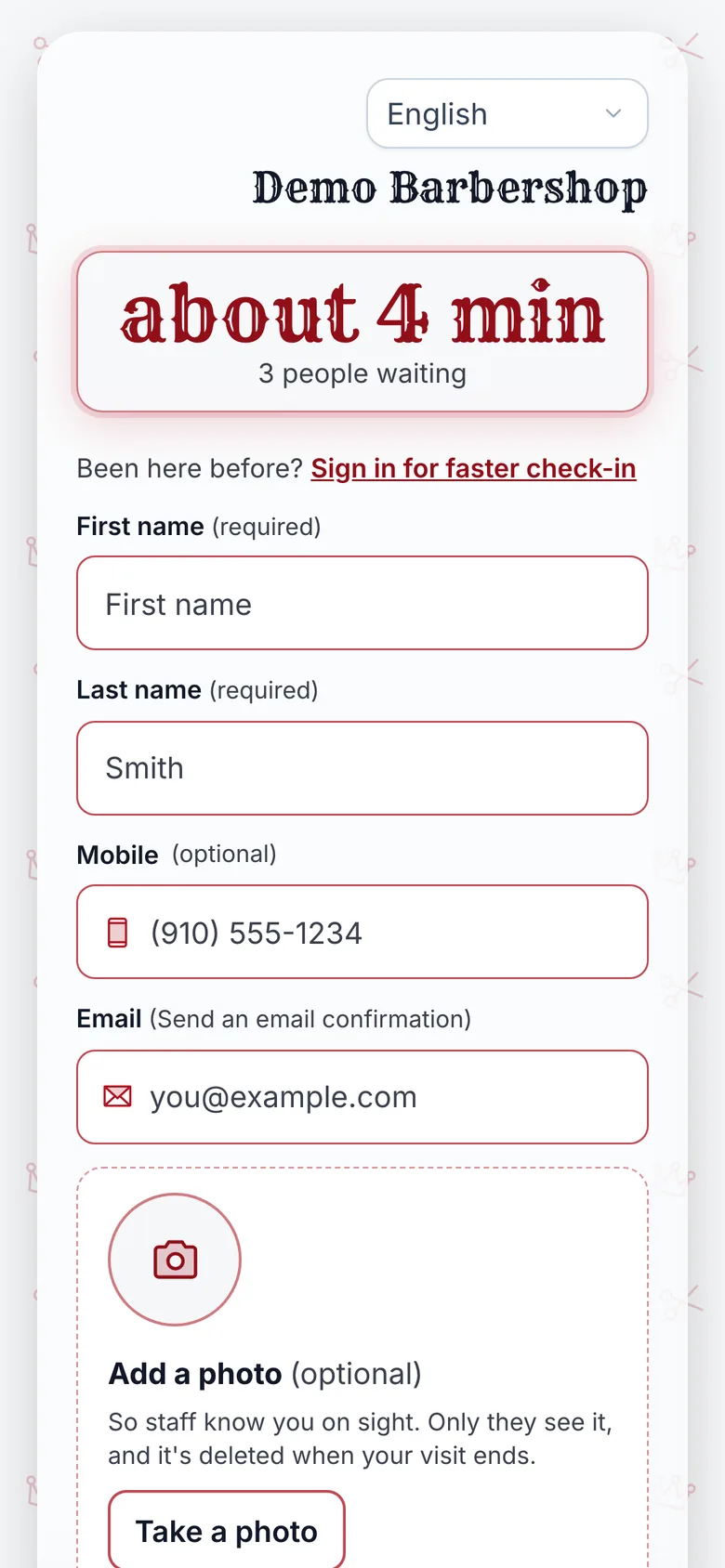
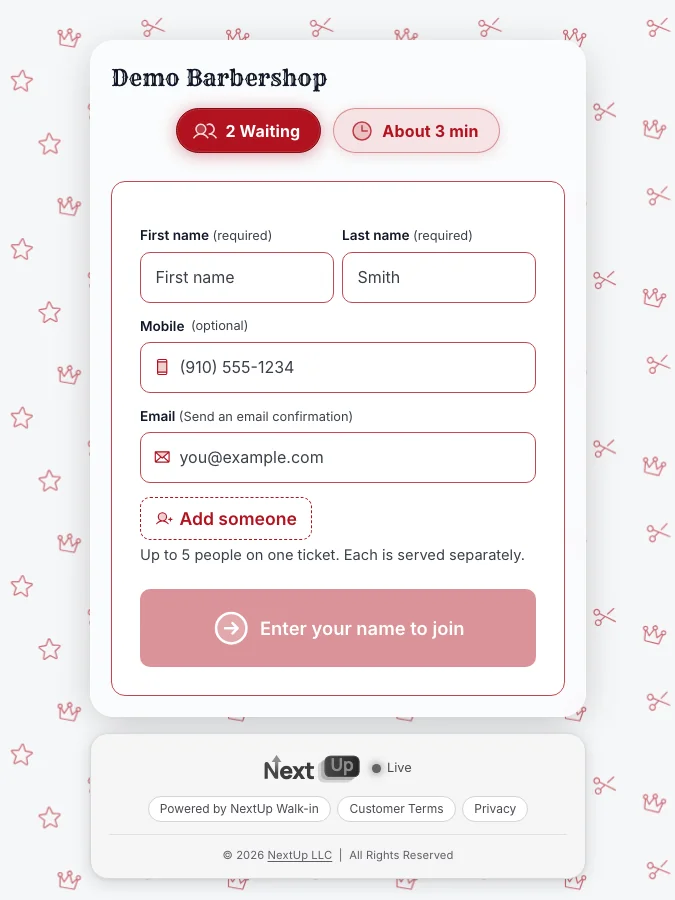
Scan, add a name, wait anywhere
The NextUp app
- A QR code per location, as a 1200×1200 PNG to print.
- No app and no account for the customer.
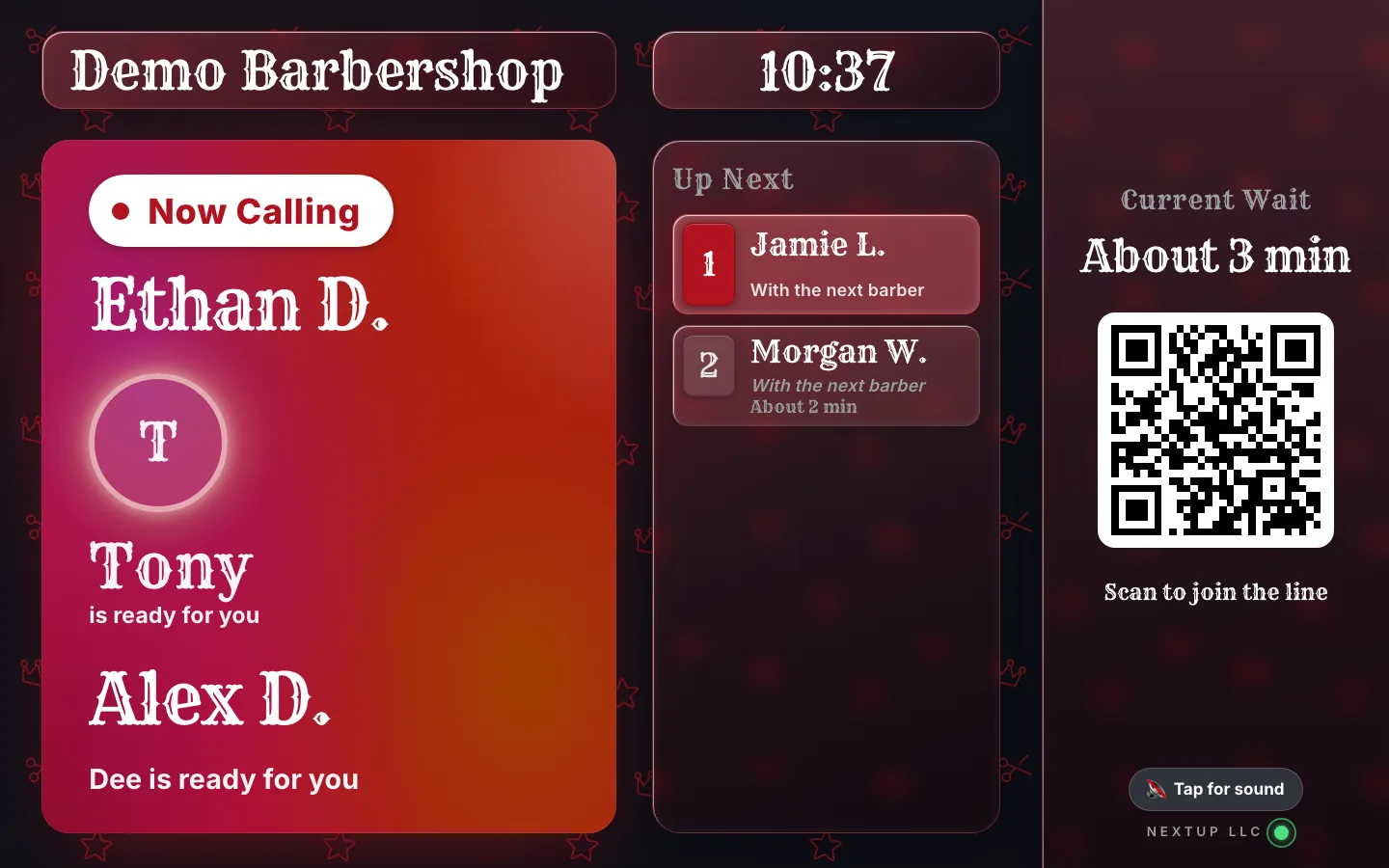
- The lobby TV shows the code too, so passers-by can join.
- Every screen included: the lobby TV, the door tablet and the phone check-in page are on every plan, Free included.
Free needs no card: pick it at sign-up. The 14-day trial has every Pro feature, once per business. A card is needed to start, but nothing is charged until the trial ends, when the plan is charged unless you cancel first.
What the customer does after scanning
The code opens your Check-in Page in the phone’s browser. Nothing is installed. They enter a name. Their page shows the moment it is their turn.
If you turned the service menu on, they pick services and add-ons and see the total time and price before they join.
If you let them choose a team member, they see who is working today, with photos, and "Anyone" comes first for people who want the next opening. If they asked for services, only the people who do those services are offered.
Then they see their place in line and an estimated wait. Their place stays on that phone, in a browser tab. They can step outside, sit in the car, or get a coffee. Their page shows the moment it is their turn, and they can allow a browser notification.
When the wait is over 10 minutes, the page also offers “Tell me when the wait is shorter” (by email) and a “best time to come today” forecast, so someone who sees a long line can pick a quieter quarter-hour or ask to be told when it drops.
Customers can read the page in English, Spanish, Vietnamese, Korean, Portuguese (Brazil), Haitian Creole or Simplified Chinese (the five beyond English and Spanish are machine-drafted and still being reviewed).
Public screens show first name and last initial only, and a check-in photo is deleted when the visit ends.
Estimate the wait for the next person who walks in
Slide the numbers to match a busy hour. The estimate is the same arithmetic a line uses to quote a wait.
- Wait for the next person
- 60 min
- Waiting right now
- 6
- Chairs working
- 3
- 30 min each
Hover or tab to a column for the numbers.
| Wait | |
|---|---|
| #1 | 0 min |
| #2 | 0 min |
| #3 | 0 min |
| #4 | 30 min |
| #5 | 30 min |
| #6 | 30 min |
| #7 | 60 min |
Example arithmetic: the wait for place N is the full rounds of service ahead of you. Real services vary, which is why a live line re-quotes.
Assumes every service takes the same time. A live line quotes from the real services booked, so it moves as the day does.
Set it up in seven steps
- Create the business and the location, and add your opening hours. The line stops taking walk-ins before closing, 20 minutes by default, and the Check-in Page shows today’s hours.
- Decide what the join form asks. Services and staff choice are optional. A short form gets more people through it. You can add them later.
- Download the code. In the dashboard, open Get Found and download the QR code for the location. It is a 1200×1200 PNG, large enough to print sharp on a letter-size sign.
- Scan it yourself before you print. Use two phones, an iPhone and an Android if you can, and check that it opens your Check-in Page.
- Print it large, on matte paper, with one line of text. “Scan to get in line. No app needed.” works.
- Post it where people decide whether to stay. That is the door, before the counter, at eye level. Add a second copy in the waiting area.
- Put the same link online. Paste it in your Instagram bio and in the website or appointment field on your Google Business Profile, so people can join before they leave home. A website widget can show whether you are open, about how long the wait is, and a link to join.
The screens your team uses
Customers join in the phone browser. Staff use any phone or computer, or the NextUp app on Android (iPhone and iPad coming soon). The Door Tablet is any tablet. The TV needs a small device in its HDMI port.
The best is an Apple TV 4K with the NextUp app. It runs natively, not in a browser, so motion is smoothest.
A Google TV Streamer works in its browser and has an Ethernet port. On a Fire TV Stick 4K Max, install the NextUp app from the Amazon Appstore, or open the display in Amazon Silk. A Roku TV or Roku stick runs the NextUp app for Roku (add it at my.roku.com/add with the code NEXTUPTV).
- WorksStreaming devices
- Apple TV
- Roku
- Fire TV Stick 4K Max
- Our app, from each device's own store
- Runs all day on its own, no phone needed
- Won't workChromecast
- Only mirrors a phone's screen
- The picture lags and stutters
- Freezes when the phone sleeps or leaves
- Use a Fire TV Stick 4K Max instead
- Coming soonNewer Fire TV Sticks
- 4K Select (2025) and Stick HD (2026) run Vega OS, with no web browser
- Our app for them is coming soon
- Until then, pick a Fire TV Stick 4K Max
- Coming soonLG and Samsung TVs
- A NextUp app built into the TV is coming soon
- Until then, plug in a streaming stick
As an Amazon Associate, NextUp Walk-in earns from qualifying purchases.
A smart TV's built-in browser is usually years behind, so the screen can render badly or stutter.
Open the NextUp app on an Apple TV, Roku, Fire TV or Google TV, or app.nextupwalkin.com/tv in a streaming stick's browser. It shows a six-character code. Enter that code under Locations → Connect a TV. The TV keeps the location.
The Staff Screen and the Door Tablet use one PIN for the location. Set it in that location's settings. Owners and managers sign in with their account instead. Five wrong account passwords lock sign-in for 30 minutes. The location PIN locks after 20 wrong tries, for 15 minutes.
Services are optional. Start from the suggestions for your trade, or import a spreadsheet and review it before it saves. Leave the menu empty and check-in skips it. Weekly hours can stop new walk-ins before you close. The default is 20 minutes.
Where to put the code
The code has to be visible before someone reaches the counter. The moment that matters is the person in the doorway, looking at a full room and deciding whether to stay. If the code is on the counter behind two people, they never see it.
Good spots: the front door, or the window beside it, at eye level. A stand just inside the entrance. A second sign in the waiting area for people who sat down before they noticed.
A copy facing out through the window, so people can join when the shop looks too busy to walk into.
If you have a waiting-room TV, it shows a QR code too, so anyone walking by can join without a trip to the counter. See what to put on your waiting-room TV.
Some customers will not want to use their phone. A Door Tablet runs the same check-in in kiosk mode on any tablet, and staff can add someone to the line from the Staff Screen. Stands and enclosures that work are on the equipment page.
Four ways a QR check-in fails
Four ways a QR check-in fails, and the fix
| The code is too small | Print a test, tape it up and scan it from the doorway. If you step closer, print it bigger. |
|---|---|
| It glares | Use matte paper or a matte laminate, and check it when the sun hits the door. |
| Nobody knows what it does | Add one line: “Scan to get in line.” |
| The line is closed | The page says when you open next. Put your hours on the sign too. |
See it on your own line
Free needs no card: pick it at sign-up. The 14-day trial has every Pro feature, once per business. A card is needed to start, but nothing is charged until the trial ends, when the plan is charged unless you cancel first.
What to write on the sign
One headline and one short line under it. The headline says what they get: "Get in line." The line under it removes the worry: "No app needed. Wait wherever you like." Keep it short enough to read from the doorway.
Skip instructions on how to scan a QR code. Most phone cameras scan one directly. A short line beats a paragraph nobody reads in a doorway.
Use your brand colors around the code if you like, but keep the code itself dark on a light background, with a clear margin around it. Light-on-dark codes and codes pressed against a busy border can fail on some phones.
Walk through it as a customer
Before the first busy day, join your own line from the door. Scan the code, enter a name, pick a service if your menu is on, and watch your place appear. Then call yourself from the Staff Screen and see what the phone and the TV do.
Time it. If joining takes longer than standing at the counter would, the form is asking for too much. Turn off anything you do not use yet.
A required consent or intake form is worth it for a tattoo studio or a groomer, but only add one when you actually need it.
Then remove your test visit so it does not sit in the line. Do the same walk-through after any change to the menu, the staff list, or the form.
Watch a line run, then try it
The video at the top of this guide is one minute of a real line on the NextUp app: a customer scans the code and joins from the phone they already have, the team calls the next person from one Staff Screen, and the TV Display and the owner dashboard change the moment they do.
Try the same line yourself. The barbershop in the video is a live demo: join it from your phone, no sign-up and no card, and watch yourself move up as pretend customers are served.
Open its TV on a laptop beside you to see the waiting-room display follow along. The demo starts fresh every night, and the three-minute walkthrough on the product tour covers the rest.
After it goes up
After a week, Insights shows walk-ins, the average wait and busiest hours. It also shows how close quoted waits came to the real ones.
If you still keep a clipboard beside it, paper, a Google Form or a waitlist compares the options.
The QR check-in is on every plan, Free included; paid plans start at $29 a month. See QR check-in, the door tablet, barbershops, pricing. There is also a Free plan: 1 location, 1 team member and 50 check-ins a month, and no card needed.
Put the code on the door today
Your first check-in is about two minutes away.
Download the code, print it big and scan it yourself. It’s on every plan, Free included.
Free needs no card: pick it at sign-up. The 14-day trial has every Pro feature, once per business. A card is needed to start, but nothing is charged until the trial ends, when the plan is charged unless you cancel first.
Questions
Do customers need an app to scan the code?
No. Most phone cameras scan a QR code directly, and the code opens your Check-in Page in the browser. Nothing is installed and no account is needed. Customers who want more can get the free NextUp app for Android (iPhone coming soon): a notification the moment they are called, even with the app closed, and their businesses saved in My Places to join again in a tap.
Where do I get my QR code?
In the NextUp app dashboard, on the Get Found page. Each location has its own code, as a 1200×1200 PNG you can print.
What if a customer does not want to use their phone?
Put a tablet at the door in kiosk mode. It runs the same check-in. Staff can also add someone to the line from the Staff Screen.
Can people join before they arrive?
Yes. The link the code opens can also go in your Instagram bio, on your Google Business Profile, or on your website, so people can join before they leave home.
Can I try the NextUp app without signing up?
Yes. Join the live demo line at app.nextupwalkin.com/s/demo from your phone and keep its TV open on another screen. No account or card is needed.

Founder of NextUp Walk-in and a software engineer with 20 years of building systems that have to work under pressure.
Ready to try it?
NextUp Walk-in is a walk-in queue for barbershops, salons, restaurants, and service shops. Customers join from the phone they already have. No app required. The trial is 14 days, with every Pro feature.